






The Hidden Risks of Aging Thumb Drives
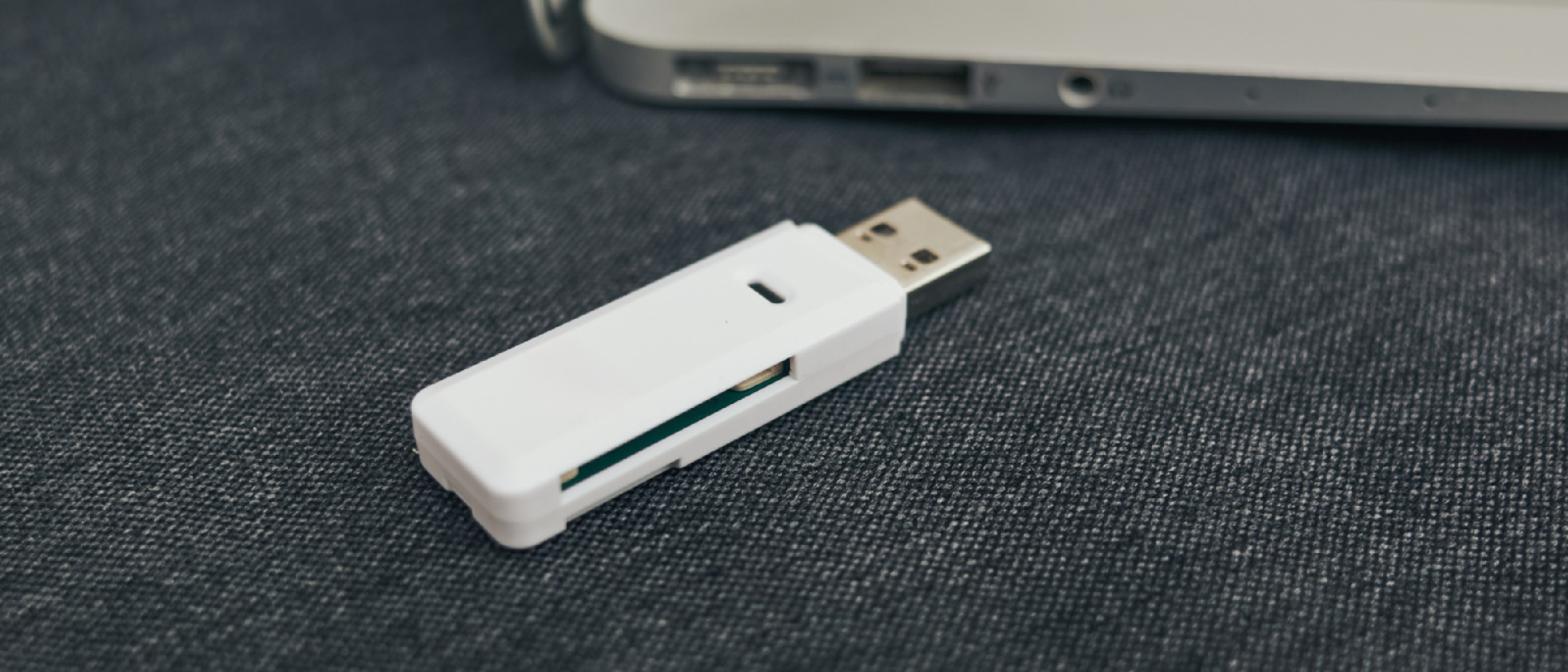
USB thumb drives have been the go‑to portable storage solution for over two decades. Their tiny form factor—“nothing more portable than a tiny USB stick”—makes them perfect for quick file swaps, presentations, or a one‑off photo dump. Yet the very qualities that make them convenient also mask a suite of failure modes that become more pronounced as the device ages.
Finite Write Cycles
Flash memory cells degrade each time they are programmed. Manufacturers typically rate consumer thumb drives for 10,000 to 100,000 write cycles. While that sounds generous, a drive used daily for backups, logs, or media transfers can exhaust its endurance in a few years. Once the cells can no longer hold a charge reliably, bit rot appears—random bit errors that silently corrupt files.
Component Wear and Environmental Exposure
Beyond the NAND cells, the connector pins and controller chip are mechanical and electronic points of failure. Repeated insertion/removal, dust, or a bent pin can render the drive unreadable. Moreover, thumb drives are often left in cars, basements, or other humid environments where mold and corrosion accelerate degradation. A drive that looks pristine on the outside may have an internal short circuit that only surfaces when you need the data most.
Loss and Theft
Because they are small enough to fit on a keyring, thumb drives are also easy to misplace. A single misplaced stick can contain passwords, client contracts, or personal photos. Unlike a laptop that can be tracked with GPS, a USB drive offers no built‑in recovery mechanism.
These risks collectively justify a proactive backup strategy, regardless of how “important” you think the data is.
Why the 3‑2‑1 Rule Still Matters
The 3‑2‑1 backup rule—three copies of your data, on two different media, with one off‑site—has been a cornerstone of data protection since the early days of personal computing. It remains relevant because it directly addresses the failure vectors described above.
- Three Copies: One primary copy on your workstation, a second on a local external drive, and a third stored elsewhere. If the thumb drive fails, you still have two other versions.
- Two Media Types: Mixing flash (thumb drive) with magnetic or solid‑state storage reduces the chance that a single flaw (e.g., a firmware bug affecting all flash) wipes everything.
- One Off‑Site: Storing a copy in the cloud or at a trusted friend’s house protects against fire, flood, or theft that could affect all local copies.
A practical implementation might look like this:
- Primary: Files saved on your laptop’s SSD.
- Local Backup 1: An external SSD kept in a fire‑resistant safe.
- Local Backup 2: A USB thumb drive stored in a different drawer.
- Off‑Site: Encrypted archive uploaded to iCloud or another reputable cloud provider.
The rule also encourages regular testing. A backup that you never open is as good as no backup. Periodically restore a random file to verify integrity.
Modern Alternatives: Cloud, SSDs, and Peer‑to‑Peer
While the 3‑2‑1 rule is media‑agnostic, the choice of media has evolved. Below we compare the most common alternatives to aging thumb drives.
Cloud Storage
Services like iCloud, Google Drive, and Dropbox provide virtually unlimited capacity, automatic versioning, and geographic redundancy. The convenience is undeniable: drag‑and‑drop from any device, and the data is instantly replicated across data centers.
Caveats
- Subscription Fees: Ongoing cost scales with storage volume.
- Internet Dependency: Outages or throttling can delay uploads or restores.
- Data Sovereignty: Some organizations have policies restricting where data may reside.
Google’s recent decision to extend Pixel updates to seven years—see the article on Google Extends Pixel Updates to Seven Years for Users —highlights the company’s commitment to long‑term service stability, which indirectly benefits cloud storage reliability.
External SSDs
External solid‑state drives combine high capacity (up to 8 TB) with fast transfer speeds and a longer write‑cycle rating than typical USB flash drives. They are ideal for large media libraries, project archives, or any dataset that exceeds the practical limits of free cloud tiers.
Pros
- No recurring fees.
- Faster than most consumer USB sticks (up to 1050 MB/s).
Cons
- Physical theft or damage remains a risk.
- Requires manual syncing unless paired with backup software.
Peer‑to‑Peer Transfer (AirDrop, Email, Chat)
For occasional small files, direct transfers via AirDrop, email attachments, or messaging apps are sufficient. They avoid the need for a physical medium altogether, but they lack persistence—once the message expires, the file is gone.
Hybrid Approach
A balanced strategy often mixes all three: use cloud for day‑to‑day documents, an external SSD for high‑value media, and a thumb drive as a quick‑grab portable copy that you rotate out every few months.
Implementing a Robust Backup Workflow
Turning theory into practice requires disciplined steps and reliable tools.
Step 1: Inventory Your Data
Create a spreadsheet or use a tool like FreeFileSync to list:
- File type (photos, PDFs, code).
- Size.
- Sensitivity (personal, business, regulatory).
This inventory informs how much cloud storage you need and which files merit an extra offline copy.
Step 2: Choose Backup Software
Automation eliminates human error. Popular cross‑platform options include:
- ChronoSync (macOS) – supports scheduled backups to local drives and cloud mounts.
- Duplicati (Windows/Linux) – encrypts data before uploading to cloud services.
Set the schedule to run nightly for critical data and weekly for larger, less‑time‑sensitive archives.
Step 3: Encrypt Before Upload
Even reputable cloud providers can be compromised. Use AES‑256 encryption with a strong passphrase. Tools like VeraCrypt create encrypted containers that can be mounted locally and backed up as a single file.
Step 4: Store One Copy Off‑Site
Place an external SSD in a safety deposit box, a trusted friend’s garage, or a fire‑proof safe at a different address. Label it clearly and rotate it every six months to keep the firmware fresh.
Step 5: Test Restores Quarterly
Select a random file from each backup tier and restore it to a fresh system. Verify checksums (e.g., SHA‑256) to ensure data integrity. This practice catches silent corruption early—something that can happen with bit rot on flash media.
Security Considerations
Backup data is a prime target for ransomware. The Zoom Annotation Flaw Patched After AI‑Prompt Exploit article ( https://ltdeveloperblogs.github.io/posts/zoomsday-hack-uncovered-using-fewer-than-20-ai-prompts ) illustrates how seemingly unrelated software bugs can become vectors for data exfiltration. Keep backup devices offline when not in use, and ensure that any machine performing restores runs up‑to‑date security software, such as the Mac Antivirus Intego One solution described here: https://ltdeveloperblogs.github.io/posts/your-mac-isnt-immune-to-viruses-surveillance-tools-intego-one-is-here-to-help .
Future Outlook: What Comes After Flash?
Flash memory will not disappear overnight, but emerging technologies are reshaping the storage landscape.
NVMe Over USB‑C
The latest USB‑C specifications support NVMe protocols, allowing external SSDs to achieve near‑internal drive speeds
NVMe over USB‑C also brings lower latency and higher IOPS, which means that large libraries of RAW photos or 4K video can be backed up in a fraction of the time it used to take with legacy USB 3.0 flash drives. However, the technology is still relatively new and the drives tend to be pricier than standard SATA‑based external SSDs. For most hobbyists, a good quality USB‑C SSD paired with a reliable backup routine will provide the best balance of speed, durability, and cost.
Emerging Non‑Volatile Memory Technologies
- Storage Class Memory (SCM) – Devices such as Intel Optane combine the speed of RAM with the persistence of flash. While still expensive, they are beginning to appear in external enclosures, offering another tier for “hot” backup data that you might need to restore instantly.
- DNA‑Based Archival Storage – Companies are experimenting with synthetic DNA as a long‑term archival medium. The promise is petabyte‑scale storage with a shelf life measured in centuries, but the technology is years away from consumer availability.
- Helium‑filled HDDs – For bulk, cold‑storage archives, helium‑filled hard drives provide high capacity (up to 20 TB) at a lower power draw than traditional drives, making them a viable option for a home media server that doubles as a backup vault.
These innovations reinforce a key point: no single medium is immune to failure. Diversifying across multiple storage classes—flash, SSD, HDD, and cloud—remains the most resilient strategy.
Practical Checklist for Safeguarding Your Thumb‑Drive Data
| ✅ Action | Details |
|---|---|
| 1️⃣ Inventory | List all thumb drives, note capacity, age, and criticality of stored files. |
| 2️⃣ Consolidate | Move rarely‑used files to a larger, more reliable medium (external SSD or cloud). |
| 3️⃣ Encrypt | Use AES‑256 containers (VeraCrypt) before copying to any backup location. |
| 4️⃣ Apply 3‑2‑1 | Ensure you have three copies, two media types, one off‑site. |
| 5️⃣ Automate | Schedule nightly syncs with ChronoSync, Duplicati, or native OS tools. |
| 6️⃣ Rotate Media | Swap the thumb‑drive copy every 6‑12 months to avoid prolonged wear on a single stick. |
| 7️⃣ Test Restores | Quarterly, restore a random file from each backup tier and verify checksums. |
| 8️⃣ Keep One Offline | Store an encrypted external SSD in a fire‑proof safe or a trusted friend’s house. |
| 9️⃣ Update Firmware | If your SSD or high‑end USB‑C enclosure supports firmware upgrades, apply them to fix bugs that could affect data integrity. |
| 🔟 Monitor Health | Use tools like CrystalDiskInfo (Windows) or DriveDx (macOS) to watch SMART metrics on SSDs and HDDs. |
Following this checklist takes only a few minutes per month but can save hours—or even days—of frantic data recovery attempts.
When Things Go Wrong: Recovery Tips
- Drive Not Recognized – Try a different USB port or a powered hub. If the controller chip is dead, a professional data‑recovery service may be able to read the NAND directly, but costs can be high.
- Corrupted Files – Use file‑repair utilities (e.g., PhotoRec for media, Office’s built‑in repair for documents) and compare against other backup copies.
- Ransomware Encryption – If the infected machine is the only source of the latest version, rely on your offline, versioned backups. Never connect a compromised system to your backup drives.
- Physical Damage – For broken connectors, a gentle re‑solder or a USB‑C adapter may revive the drive long enough to copy data. Again, professional services are the safest route for critical data.
Bottom Line
Thumb drives have served us well for two decades, but their finite write cycles, susceptibility to environmental damage, and ease of loss make them unsuitable as the sole repository for anything you truly care about. By embracing the 3‑2‑1 rule, leveraging modern cloud and NVMe‑over‑USB‑C SSDs, and maintaining a disciplined backup workflow, you can protect your memories, work, and peace of mind for years to come.
Frequently Asked Questions
Q: How often should I replace an old thumb drive?
A: If the drive is more than 3‑4 years old or shows signs of wear (slow transfers, frequent disconnects), treat it as a candidate for retirement and migrate its contents to newer media.
Q: Is encrypting backups worth the extra effort?
A: Absolutely. Encryption protects against data breaches, especially when storing copies off‑site or in the cloud. AES‑256 encryption adds negligible overhead for most modern CPUs.
Q: Can I rely solely on cloud storage and discard physical backups?
A: While cloud services are highly reliable, they are still subject to outages, account lockouts, and policy changes. Maintaining at least one offline copy satisfies the “off‑site” component of 3‑2‑1 without relying on internet connectivity.
Q: What’s the best file‑format for long‑term archival?
A: Use open, widely‑supported formats (e.g., JPEG for photos, PDF/A for documents, FLAC for audio). Avoid proprietary formats that may become obsolete.
Q: How do I verify that my backups aren’t suffering from bit rot?
A: Generate and store checksums (SHA‑256) for each file. Periodically recompute the checksum on the backup copy and compare; mismatches indicate corruption.
Q: Are there any free tools for implementing the 3‑2‑1 rule?
A: Yes. FreeFileSync (Windows/macOS/Linux) can mirror folders to local drives and network shares. For cloud backups, rclone works with many providers and can be scripted for scheduled runs.
Q: What should I do if my external SSD fails during a restore?
A: Switch to another backup tier (cloud or the secondary USB drive). If none are available, consider a professional data‑recovery service as a last resort.
Stay proactive, keep multiple copies, and don’t let an aging thumb drive become the single point of failure for your digital life.
Source: Original Article