





The USB Trident Symbol – History and Meaning
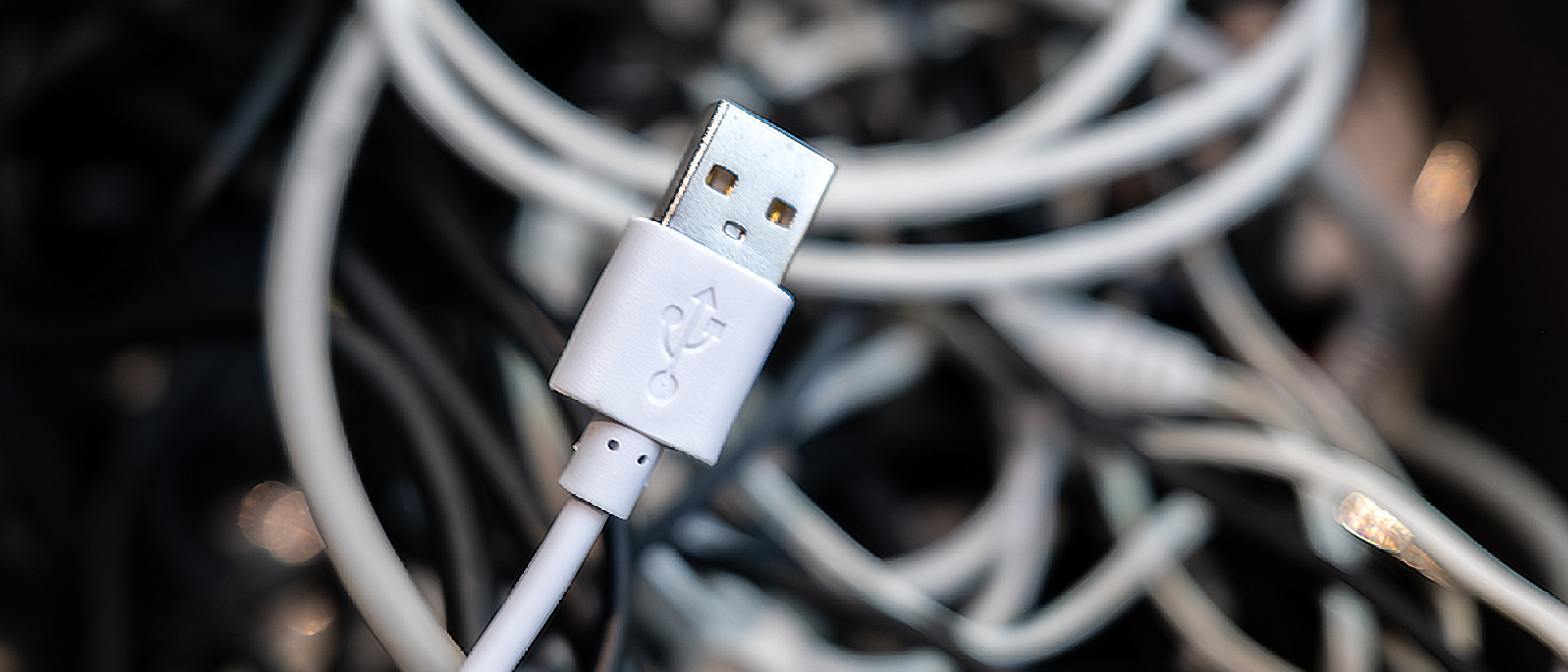
When you glance at the back of a laptop or the side of a desktop, the three‑pronged trident is instantly recognizable. That emblem is not merely decorative; it is the visual shorthand for the USB Implementers Forum (USB IF), the body that defines every USB specification since the late 1990s.
- Original Trident (alone) – Introduced with USB 2.0 in 2000, the plain trident signals a maximum bandwidth of 480 Mbps. At the time, this “High Speed” rate was a massive leap over the original 12 Mbps USB 1.1, and the symbol quickly became synonymous with reliable, low‑power peripherals such as keyboards, mice, and basic flash drives.
Over the past two decades, the trident has been augmented with additional markings—“SS”, “10 Gbps”, half‑circles, and more—to convey newer generations. Understanding these suffixes is the first step toward demystifying today’s heterogeneous USB ecosystem.
Color Coding and Port Identification
Manufacturers have long used plastic color as a quick visual cue. While the USB IF does not officially standardize most colors, three hues have become de‑facto conventions:
| Color | Typical Standard | Common Use Cases | Extra Notes |
|---|---|---|---|
| Black / White | USB 2.0 (480 Mbps) | Keyboards, mice, low‑speed storage | Most universal |
| Blue | USB 3.x (5 Gbps) | External SSDs, high‑speed flash drives | Some vendors use blue for later 10 Gbps ports |
| Red | USB 3.1/3.2 (10 Gbps‑20 Gbps) | Docking stations, power‑delivery ports | Often “always‑on” power when PC is off |
| Yellow | Mixed (USB 2.0 or 5 Gbps) with standby power | Charging stations, legacy hubs | Not standardized |
| Purple | Manufacturer‑specific (e.g., ASUS “AI‑overclock”) | Rare, proprietary features | No official meaning |
Because color alone can be ambiguous, the trident plus text/logo is the reliable identifier. When you see a blue port with a “SS” badge, you can safely assume a 5 Gbps “SuperSpeed” connection.
Evolution of USB Speed Standards
The USB roadmap is a study in marketing‑driven naming and technical consolidation. Below is a concise timeline that aligns each generation with its visual markers:
| Generation | Year Introduced | Bandwidth | Marketing Name | Logo Elements |
|---|---|---|---|---|
| USB 3.0 | 2008 | 5 Gbps | SuperSpeed (SS) | Trident + “SS” + “5 Gbps” |
| USB 3.1 | 2013 | 10 Gbps | SuperSpeed+ (SS+) | Trident + “SS” + “10 Gbps” |
| USB 3.2 | 2017 | 20 Gbps | SuperSpeed USB 20Gbps | Trident + “SS” + “20 Gbps” |
| Simplified Naming (2022) | – | – | 5 Gbps → “USB 5Gbps”, 10 Gbps → “USB 10Gbps”, 20 Gbps → “USB 20Gbps” | Text‑only speed label |
| USB4 | 2019 | 20 Gbps or 40 Gbps | – | Trident + “20”/“40” + half‑circle |
| USB4 2.0 | 2022 | 80 Gbps | – | Trident + “80Gbps” + half‑circle |
The 2022 simplification was a direct response to consumer confusion: rather than remembering “SuperSpeed+” versus “SuperSpeed USB 20Gbps”, the numeric label tells you the exact throughput. This shift also aligns USB branding with the Thunderbolt ecosystem, which already uses clear gigabit numbers.
Real‑World Transfer Benchmarks
To illustrate the practical impact, consider moving a 100 GB data set:
- USB 2.0 (480 Mbps) – ~28 minutes
- USB 5 Gbps (USB 3.0) – ~2 minutes 40 seconds
- USB 4 40 Gbps – ~20 seconds
These figures underscore why professionals in video production, game development, and data science prioritize the highest‑speed ports.
Integrated Features: Thunderbolt, Power Delivery, and DisplayPort Alt Mode
Modern USB‑C connectors are multifunctional highways. The trident may be accompanied by additional logos that reveal these capabilities.
Thunderbolt
- Logo: Lightning bolt with an arrowhead.
- Connector: USB‑C (since Thunderbolt 3).
- Capabilities: Up to 40 Gbps, dual 4K video, PCIe tunneling, and up to 100 W charging.
- Why It Matters: Thunderbolt consolidates external GPU enclosures, high‑resolution monitors, and fast storage into a single cable. However, Thunderbolt cables are priced higher than standard USB‑C cables, and the technology requires both host and peripheral to be Thunderbolt‑compatible.
“Thunderbolt is the Swiss‑army knife of modern I/O, but its premium cost means you should verify the bolt logo before buying a cable.” – Engadget
Power Delivery (PD)
- Logo: Battery icon behind the trident or the letters “PD”.
- Function: Negotiates voltage and current up to 100 W, allowing laptops, tablets, and even some monitors to charge over a single USB‑C cable.
- Industry Impact: PD has driven the shift away from proprietary chargers, simplifying travel kits and reducing electronic waste.
DisplayPort Alt Mode
Logo: The DisplayPort logo (a stylized “D” and “P” in a rectangle).
- Function: Enables video output over USB-C, supporting resolutions up to 8K at 60Hz or 4K at 120Hz, depending on the version.
- Use Case: Connecting monitors, projectors, or VR headsets without needing a dedicated video port.
- Compatibility Note: Not all USB-C ports support Alt Mode—check for the DisplayPort logo or consult the device specifications.
Practical Identification Workflow
When faced with an unfamiliar port, follow this decision tree:
Connector Shape
- USB-A (rectangular): Likely USB 2.0 or USB 3.x (check color/symbols).
- USB-C (oval): Supports USB 3.x, USB4, Thunderbolt, PD, and/or Alt Mode.
Symbols and Logos
- Trident alone: USB 2.0.
- Trident + “SS”: USB 3.x (speed depends on additional text).
- Trident + number (e.g., “20” or “40”) + half-circle: USB4.
- Lightning bolt: Thunderbolt.
- Battery icon or “PD”: Power Delivery.
- DisplayPort logo: Video output support.
Color (Secondary Cue)
- Blue: Likely USB 5Gbps (USB 3.0).
- Red: Often USB 10Gbps/20Gbps or PD-enabled.
- Black/White: Usually USB 2.0.
Cable Labels
- Look for printed text on cables (e.g., “USB 20Gbps,” “Thunderbolt 4,” “40Gbps”).
- Avoid cables with vague labels like “High Speed” or “Fast Charging” without explicit specifications.
Common Pitfalls and Misconceptions
1. “All USB-C Ports Are the Same”
USB-C is a connector shape, not a speed or feature guarantee. A USB-C port could be:
- USB 2.0 (480 Mbps, no PD or video).
- USB 5Gbps (USB 3.0, basic data).
- USB4 40Gbps (high-speed data, video, and PD).
- Thunderbolt 4 (40Gbps, dual 4K displays, PCIe tunneling).
Solution: Check the port’s symbols or the device’s manual.
2. “Blue Ports Are Always USB 3.0”
While blue typically indicates USB 3.0 (5Gbps), some manufacturers use it for USB 3.1 (10Gbps) or USB 3.2 (20Gbps). Always verify the logo or text.
3. “Thunderbolt Cables Are Just Expensive USB-C Cables”
Thunderbolt cables are electronically different—they include active circuitry to support higher speeds and features like PCIe tunneling. A “USB-C” cable may not work for Thunderbolt devices, even if it fits.
4. “Power Delivery Means Fast Charging”
PD enables smart charging (negotiating voltage/current), but the actual charging speed depends on the device’s power requirements and the cable’s wattage rating. A 100W PD port won’t charge a laptop at 100W if the cable only supports 60W.
5. “USB4 Is Just Faster USB 3.2”
USB4 is a fundamental redesign based on Thunderbolt 3’s protocol. Key differences:
- Mandatory features: USB4 requires 20Gbps minimum, PD, and DisplayPort Alt Mode.
- Tunneling: Supports PCIe and DisplayPort data simultaneously.
- Backward compatibility: Works with USB 3.x and USB 2.0 devices.
Future-Proofing Your Setup
For Consumers
- Prioritize USB4/Thunderbolt 4: Future-proof for 40Gbps+ speeds and multi-functionality.
- Check cable certifications: Look for “USB-IF Certified” or “Thunderbolt Certified” labels.
- Avoid cheap cables: Uncertified cables may not support advertised speeds or features.
For Professionals (Video Editors, Gamers, etc.)
- Invest in Thunderbolt docks: Simplify workflows with single-cable connectivity for monitors, storage, and peripherals.
- Use active cables for long runs: Passive cables degrade performance over 0.8m; active cables maintain speeds up to 2m.
- Label your cables: Use colored tape or tags to identify high-speed vs. basic cables.
For Manufacturers
- Adopt clear labeling: Follow USB-IF’s 2022 naming conventions (e.g., “USB 20Gbps” instead of “USB 3.2 Gen 2x2”).
- Standardize port colors: Stick to blue for USB 5Gbps and red for USB 10Gbps/20Gbps to reduce confusion.
- Educate users: Include a quick-reference guide in manuals or on packaging.
Conclusion
The USB trident symbol is more than a logo—it’s a gateway to understanding a port’s capabilities. By decoding the trident’s companions (SS, numbers, half-circles, and additional logos), you can navigate the maze of USB standards with confidence. Remember:
- Symbols > Colors: Logos provide definitive information; colors are secondary.
- USB-C ≠ USB4: The connector shape doesn’t guarantee speed or features.
- Thunderbolt and PD expand functionality: These logos unlock advanced use cases like external GPUs and laptop charging.
As USB continues to evolve (with USB4 2.0’s 80Gbps and beyond), staying informed will help you make smarter purchasing decisions, avoid compatibility headaches, and fully leverage your devices’ potential.
FAQ
Q: Why does my USB-C port not charge my laptop?
A: Not all USB-C ports support Power Delivery (PD). Check for the battery icon or “PD” logo. If absent, the port may only provide 5V/0.5A (2.5W), insufficient for laptops.
Q: Can I use a Thunderbolt cable for regular USB-C devices?
A: Yes, Thunderbolt cables are backward-compatible with USB-C devices, but they’re overkill for basic data transfer. Use standard USB-C cables for non-Thunderbolt devices to save money.
Q: How do I know if my cable supports USB4?
A: Look for:
- The USB4 logo (trident + “20” or “40” + half-circle).
- “USB-IF Certified” labeling.
- A printed speed rating (e.g., “40Gbps”).
- Avoid cables with no markings or vague labels like “High Speed.”
Q: Why is my 10Gbps USB port only transferring at 5Gbps?
A: Possible reasons:
- Cable limitation: The cable may only support 5Gbps (check for “SS” vs. “SS+10Gbps”).
- Device limitation: The connected device (e.g., a flash drive) may only support 5Gbps.
- Port sharing: Some laptops share bandwidth between ports; using multiple high-speed devices simultaneously can throttle speeds.
Q: What’s the difference between USB4 and Thunderbolt 4?
| Feature | USB4 (40Gbps) | Thunderbolt 4 |
|---|---|---|
| Minimum Speed | 20Gbps | 32Gbps (40Gbps max) |
| PCIe Tunneling | Optional | Mandatory |
| Video Support | 1x 4K or 2x 1080p | 2x 4K or 1x 8K |
| Charging | Up to 100W | Up to 100W |
| Cable Length | 0.8m (passive) | 2m (active) |
| Certification | USB-IF | Intel |
Thunderbolt 4 is a superset of USB4, offering stricter requirements and additional features like PCIe tunneling and longer cable support.
Q: Can I connect a USB 2.0 device to a USB4 port?
A: Yes, USB4 ports are backward-compatible with USB 2.0 and USB 3.x devices. However, the device will operate at its native speed (e.g., 480 Mbps for USB 2.0).
Q: What’s the deal with “USB 3.2 Gen 1x1” and other confusing names?
A: The USB-IF’s pre-2022 naming was notoriously convoluted. Here’s the translation:
- USB 3.2 Gen 1x1 = USB 3.0 = USB 5Gbps.
- USB 3.2 Gen 2x1 = USB 3.1 = USB 10Gbps.
- USB 3.2 Gen 2x2 = USB 3.2 = USB 20Gbps. The 2022 simplification replaced these with “USB 5Gbps,” “USB 10Gbps,” and “USB 20Gbps.”
Q: How do I test my USB port’s speed?
A: Use benchmarking tools like:
- Windows: CrystalDiskMark, USBDeview.
- macOS: Blackmagic Disk Speed Test, AJA System Test.
- Linux:
ddcommand,hdparm. Connect a high-speed SSD or flash drive and run the test to verify the port’s actual throughput.
Q: Are there any security risks with USB ports?
A: Yes. Malicious devices (e.g., “USB killers” or data-stealing “Rubber Ducky” drives) can exploit USB ports. Mitigation tips:
- Use USB data blockers (for charging-only).
- Disable USB ports in BIOS when not in use.
- Avoid plugging unknown devices into sensitive systems.
Source: Original Article