





What Happened: A Fake Zoom Installer on macOS
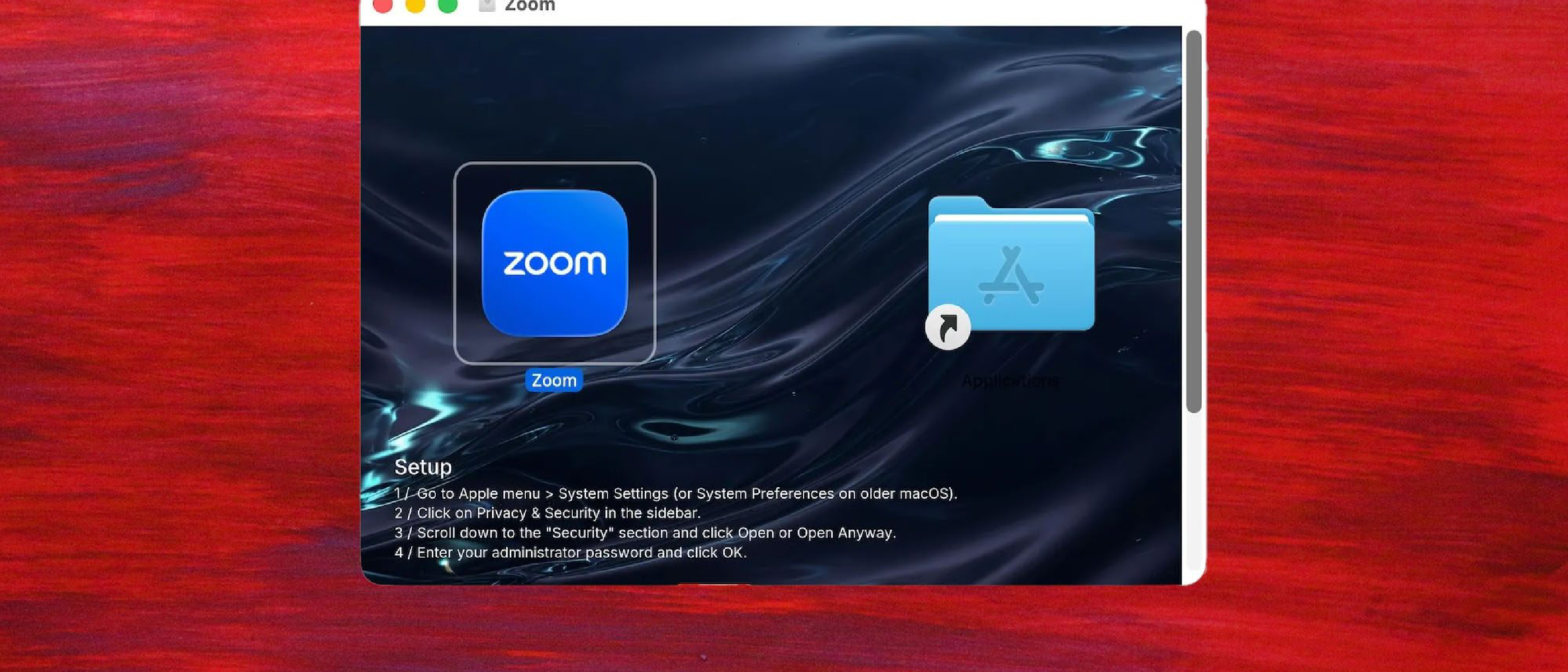
Jamf, a leading provider of Apple‑focused security solutions, recently uncovered a malicious installer masquerading as the official Zoom client for macOS. The installer is distributed through unofficial channels and is deliberately crafted to look identical to Zoom’s legitimate download page. When a user runs the package, the malware performs a “double installation”:
- Legitimate Zoom binary – The real Zoom client is installed in the expected location, allowing the user to join meetings without suspicion.
- Hidden infostealer – A second payload is dropped alongside Zoom. This component silently monitors the system, captures credentials, browser cookies, and other sensitive data, then exfiltrates the information to a command‑and‑control (C2) server controlled by the attacker.
Jamf’s analysis notes that the installer “uses a sneaky way to bypass Apple’s Gatekeeper protection against malware.” By exploiting a weakness in the notarization process, the malicious package is allowed to run without triggering the usual warnings that macOS users rely on.
Technical Breakdown of the Gatekeeper Bypass
Gatekeeper is Apple’s first line of defense against unsigned or malicious software. It checks that an app is notarized by Apple and that its code signature matches the published hash. The fake Zoom installer sidesteps these checks through a combination of techniques:
1. Dual‑Package Wrapper
The malicious DMG contains two separate installer bundles:
- Zoom.pkg – A properly signed Zoom package downloaded directly from Zoom’s official servers. Because it is notarized, Gatekeeper passes it without issue.
- Stealer.pkg – An unsigned, malicious package that is embedded inside the same DMG but is not directly presented to Gatekeeper. Instead, the installer script extracts and runs it after the legitimate Zoom.pkg finishes.
2. Post‑Installation Script Abuse
During the Zoom installation, a post‑install script is executed with elevated privileges. The script performs the following steps:
- Verifies the integrity of the Zoom binary (a decoy check that always succeeds).
- Copies the hidden stealer payload to
/Library/Application Support/Zoom/where it blends in with legitimate Zoom files. - Registers a launch daemon (
com.zoom.helper.plist) that runs the stealer at login, ensuring persistence.
3. Code‑Signing Spoofing
The attacker re‑signs the stealer payload with a self‑generated certificate that mimics Zoom’s developer ID. macOS treats the certificate as valid for the duration of the installation, but the signature is never verified against Apple’s notarization service because the payload is never submitted for notarization.
These tactics collectively allow the malicious code to “fly under the radar” of Gatekeeper, a scenario reminiscent of the Zoom annotation flaw that was recently patched after an AI‑prompt exploit. For more context on how Zoom’s attack surface is being weaponized, see the detailed coverage here: https://ltdeveloperblogs.github.io/posts/zoomsday-hack-uncovered-using-fewer-than-20-ai-prompts .
Why It Matters for Users and Enterprises
Erosion of Trust in Trusted Platforms
Apple markets macOS as a secure ecosystem, and Gatekeeper is a cornerstone of that promise. When a widely used application like Zoom becomes a vector for stealthy malware, the perceived safety of the platform erodes. Users may become reluctant to install legitimate software, slowing productivity and increasing support overhead.
Data‑Theft Risks
The infostealer is capable of harvesting:
- Credentials – Saved passwords from browsers, keychains, and VPN clients.
- Corporate Information – Documents stored in local folders, meeting recordings, and shared drive links.
- Session Tokens – Tokens for cloud services (e.g., Microsoft 365, Google Workspace) that can be reused for lateral movement within an organization.
A successful breach can lead to credential stuffing attacks, ransomware deployment, or espionage. Enterprises that rely on Zoom for remote collaboration are especially vulnerable because the legitimate Zoom client provides a convenient foothold for the attacker.
Compliance Implications
Many regulated industries (healthcare, finance, government) must demonstrate that they protect personal data under standards such as HIPAA, GDPR, or PCI‑DSS. An undetected infostealer could constitute a violation, resulting in fines and reputational damage.
Industry Impact and Response
Vendor Reaction
Zoom has issued a statement confirming that its official installers are safe and urging users to download only from the official website. The company is also reviewing its distribution channels to detect and block repackaged installers.
Apple, for its part, is expected to release an emergency update to Gatekeeper that tightens verification of nested installers. Historically, Apple has responded quickly to similar threats—recall the rapid patch cycle after the “XcodeGhost” incident in 2015.
Security Community Mobilization
Jamf’s disclosure has sparked a wave of analysis across the security community. Researchers are scanning popular download mirrors, third‑party app stores, and even corporate intranets for the same DMG hash. The incident also underscores the importance of endpoint detection and response (EDR) solutions that can spot anomalous post‑install scripts.
Broader Market Trends
The attack highlights a growing trend: malware that piggybacks on trusted software. As users become more security‑aware, attackers increasingly rely on “double‑installation” tactics to blend in. This mirrors the tactics seen in the Chinese Auto Giant Moves to Apple Wallet Car Keys article, where attackers attempted to exploit Apple’s ecosystem in the automotive domain. For a broader view of how Apple’s ecosystem is being targeted, see: https://ltdeveloperblogs.github.io/posts/yet-another-major-chinese-car-brand-is-preparing-to-support-car-keys-in-apple-wallet .
Mitigation and Best Practices
Immediate Steps for End Users
- Download Only From Official Sources – Always obtain Zoom from https://zoom.us/download or the Mac App Store.
- Verify Checksums – When a DMG is provided, compare its SHA‑256 hash with the value published on Zoom’s website.
- Enable Full Disk Encryption – FileVault adds a layer of protection if the infostealer attempts to read unencrypted data.
Enterprise‑Level Controls
Application Whitelisting – Use macOS’s built‑in
spctltool or a third‑party MDM to allow only signed, notarized Zoom binaries.Enable Gatekeeper Strict Mode – Administrators can enforce the
--strictflag viaspctl --master-enable --global-policyto reject any app that isn’t notarized, even if it’s bundled inside a signed installer.Monitor Launch Daemons – Regularly audit
/Library/LaunchDaemons/and~/Library/LaunchAgents/for unexpectedcom.zoom.*plist files. The malicious installer registers a daemon namedcom.zoom.helper.plist; its presence outside of Zoom’s official documentation is a red flag.Leverage Endpoint Detection & Response (EDR) – Deploy EDR rules that trigger on the creation of files in
~/Library/Application Support/Zoom/that are not part of the official Zoom bundle, or on the execution of unsigned binaries from that directory.Restrict Script Execution – Use macOS’s built‑in
csrutil(System Integrity Protection) and thecom.apple.syspolicy.kernel.extension-policyto limit the execution of post‑install scripts that attempt to write to privileged locations.Educate Users – Conduct phishing‑aware training that emphasizes the danger of downloading installers from “search engine results” or third‑party sites, especially for productivity tools like Zoom.
Detection and Response for Compromised Machines
Identify the Artifact – Search for the unique hash of the malicious DMG (published by Jamf) across your file system:
sudo find / -type f -name "*.dmg" -exec shasum -a 256 {} \; | grep <known‑hash>Check for the Stealer Binary – The payload typically lands as
ZoomHelper(or a similarly named binary) in/Library/Application Support/Zoom/. Use:sudo find /Library/Application\ Support/Zoom/ -type f -perm +111 -exec file {} \;Inspect Launch Daemons – Look for the suspicious plist:
sudo launchctl list | grep com.zoom.helperIf found, unload and delete it:
sudo launchctl bootout system /Library/LaunchDaemons/com.zoom.helper.plist
sudo rm /Library/LaunchDaemons/com.zoom.helper.plist
Quarantine the System – Isolate the endpoint from the corporate network, then run a full malware scan with an up‑to‑date AV/EDR solution.
Credential Rotation – Assume that any captured credentials are compromised. Force password resets for all accounts that logged in from the affected machine and revoke any active session tokens.
Recommendations for IT Teams and MDM Administrators
| Control | Recommended Action |
|---|---|
| MDM Policy | Deploy a configuration profile that blocks the installation of unsigned .pkg files and enforces notarization checks. |
| Software Inventory | Enable automatic inventory collection in Jamf Pro or similar MDM to flag any Zoom binaries that do not match the known good SHA‑256 hash. |
| Network Monitoring | Set up DNS‑based detection for the attacker’s C2 domains (identified by Jamf as *.malicious‑zoom‑stealer.com). Alert on outbound connections from Zoom processes to those domains. |
| Patch Management | Ensure macOS devices receive the upcoming Gatekeeper hardening update (expected in the next macOS 14.6 release). |
| User Reporting | Provide a simple “Report Suspicious Installer” button in the corporate help‑desk portal, linking directly to a script that gathers system logs for analysis. |
Conclusion
The fake Zoom installer is a textbook example of trust‑abuse malware: it leverages a legitimate, widely‑trusted application to gain a foothold, then slips a hidden payload past Apple’s primary defense mechanism. While the immediate impact is data theft, the long‑term risk includes credential reuse, lateral movement, and potential compliance violations.
For individuals, the safest path is to download Zoom exclusively from the official website or the Mac App Store and to verify checksums when possible. For organizations, a layered defense—combining strict Gatekeeper policies, robust endpoint monitoring, and user education—remains the most effective way to neutralize this and similar threats.
FAQ
Q: Does this affect the Zoom app I already have installed?
A: No. The malicious DMG installs a second copy of Zoom alongside the legitimate one. Existing installations remain untouched unless the user runs the fake installer.
Q: Can I still use Gatekeeper if I enable “Allow apps from identified developers”?
A: Gatekeeper will still block unsigned payloads, but the attacker’s technique hides the unsigned component inside a signed Zoom package. Enabling Strict Mode (spctl --global-policy --strict) mitigates this specific bypass.
Q: How can I verify the authenticity of a Zoom installer?
A: Compare the SHA‑256 hash of the downloaded DMG with the value published on Zoom’s official download page. Zoom also provides a signed .pkg that can be verified with spctl -a -vvv <file>.
Q: What should I do if I suspect my machine is infected?
A: Isolate the device, run the detection steps outlined above, and contact your security team. Assume any credentials stored on the machine may be compromised and rotate them promptly.
Q: Will Apple’s upcoming Gatekeeper update completely block this technique?
A: The forthcoming update tightens verification of nested installers, making the exact method used by this campaign far less reliable. However, attackers constantly evolve, so maintaining defense‑in‑depth is essential.
Source: Original Article