



The 4:39 Scroll Limit Explained
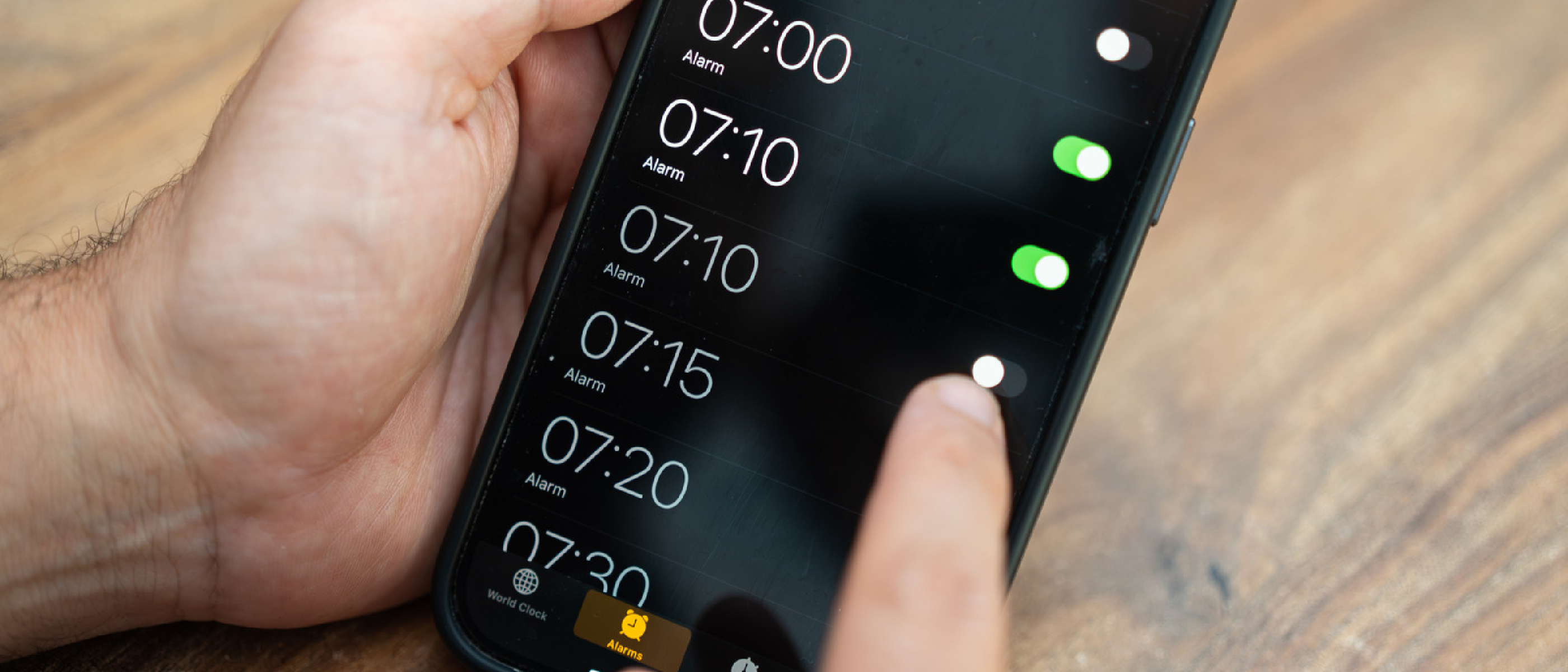
In mid‑2025 a viral thread on X (formerly Twitter) revealed a subtle but puzzling behavior in the iPhone’s native Clock app: when users rapidly scroll the hour or minute picker while setting an alarm, the list appears infinite at first, only to stop abruptly at 4:39 (or 16:39 in 24‑hour mode). The phenomenon does not prevent setting an alarm at any time; it merely caps the visual scroll range.
Technical hypothesis
One X user suggested the culprit could be a UIKit component known as UITableView (often referred to as “Tableview”). UITableView reuses cells for performance, and developers sometimes set a finite data source length. If Apple’s internal implementation mistakenly treats the scrollable range as a static array rather than a looping construct, the UI would hit a hard stop once the underlying data source is exhausted.
Key points:
- Visual vs. functional limit – The alarm still accepts any hour/minute; the stop is purely cosmetic.
- Potential memory optimization – Limiting the scroll buffer could reduce off‑screen cell allocation.
- Legacy code path – The same component may have been inherited from early iOS versions where infinite scrolling was not a priority.
While Apple has not officially commented, the consistency of the endpoint across devices suggests an intentional, if undocumented, design decision rather than a bug.
Dynamic Clock Icon: A Legacy Feature
Since iOS 7, the Clock app’s home‑screen icon has been a living widget, displaying the current time with a moving second hand. This was one of the first system‑wide dynamic icons, predating the later introduction of widgets and Live Activities.
Why it matters:
- User experience continuity – Users can glance at the lock screen and still see an accurate time without opening the app.
- Performance considerations – Updating the icon every second requires background processing, which Apple optimizes through low‑power timers.
- Design language – The moving second hand reinforces Apple’s emphasis on precision and real‑time feedback.
The dynamic icon also set a precedent for later features like the Always‑On Display (AOD) on newer iPhone models, where the clock remains visible even when the device is idle.
Low Power Mode Animation Shift
With the rollout of iOS 26.1, Apple introduced a subtle visual change for devices in Low Power Mode. Normally, the second hand on the Clock icon sweeps smoothly, mimicking an analog clock’s continuous motion. In Low Power Mode, the animation switches to a once‑per‑second “tick”, reminiscent of a quartz watch.
“On i OS 26.1 devices and later, however, Low Power Mode changes the motion to a once‑second tick, like a traditional quartz clock.”
Implications for developers
- Battery savings – Reducing animation frames cuts GPU usage, extending battery life.
- User perception – The ticked motion signals to users that the device is conserving power, reinforcing the Low Power Mode branding.
- Accessibility – Some users with motion sensitivity prefer the less fluid animation; Apple’s automatic switch provides a built‑in accommodation.
The change is visual only; there is no audible ticking, keeping the experience quiet while still delivering a perceptible difference.
Beyond the Alarm: Stopwatch, StandBy, and AOD
The Clock app houses several lesser‑known utilities that have evolved alongside iOS.
Stopwatch face toggle
- How to use: Open the Stopwatch tab and swipe horizontally across the display.
- Options: Switch between a digital readout and an analog dial.
- Documentation: This gesture is listed in the official iPhone user guide, confirming its intentional design.
StandBy mode
- Activation: Place the iPhone on its side while charging.
- Display: Shows a customizable screen of widgets, photos, or a large clock.
- Navigation: Swipe left or right to cycle through different clock styles, including analog, digital, and world‑clock layouts.
Night Mode within StandBy
- Purpose: Reduces blue‑light emission for bedroom use.
- Visual cue: Applies a heavy red tint, making the display less intrusive while still readable.
Always‑On Display (AOD)
- Supported models: Only recent iPhones with OLED panels (e.g., iPhone 15 Pro and later) can keep the clock visible at all times.
- Hardware recommendation: Pairing with a MagSafe charger and a kickstand provides a stable, always‑on bedside setup.
- Workarounds for non‑AOD devices: A quick screen nudge or a Siri command (“Hey Siri, show the clock”) can simulate an AOD experience.
These features illustrate Apple’s incremental approach: start with a simple alarm, then layer on gestures, power‑saving visual tweaks, and finally a full‑screen always‑on experience.
Why These Oddities Matter to Users and Developers
User trust and discoverability
Hidden UI limits like the 4:39 scroll stop can erode confidence, especially for power users who expect every interaction to be transparent. When a visual cue contradicts functional capability, users may assume a bug and seek workarounds.
Development best practices
Avoid hard‑coded data sources – If Apple’s internal
UITableViewimplementationAvoid hard‑coded data sources – If Apple’s internal
UITableViewimplementation relies on a static array length, developers risk unintentionally capping scrollable content. Using a circular data source or leveragingUIPickerViewwith infinite looping can prevent similar visual dead‑ends.Prefer
UIPickerViewfor time‑selection – Apple’s own Clock app predates the modernUIPickerViewcomponent, which natively supports the “wrap‑around” behavior users expect when scrolling hours or minutes. Migrating to this component eliminates the need for a custom “infinite” scroll hack.Run UI regression tests on all locales – The 4:39 limit appears in both 12‑hour and 24‑hour modes, but locale‑specific calendars (e.g., Arabic, Japanese) may expose other edge cases. Automated snapshot testing can catch visual truncations before they reach production.
The broader design philosophy behind “oddities”
Apple often embraces subtle, hidden behaviors as part of its design language. The 4:39 scroll stop, the ticking animation in Low Power Mode, and the dynamic clock icon all serve a purpose beyond pure functionality:
| Quirk | Intended Effect | User‑Facing Benefit |
|---|---|---|
| Scroll stop at 4:39 | Reduce off‑screen cell allocation, saving memory on older devices | Keeps the UI responsive even on low‑end iPhones |
| Ticking animation in Low Power Mode | Lower GPU frame‑rate to conserve battery | Gives a visual cue that the device is in power‑saving mode |
| Dynamic icon with second hand | Demonstrate real‑time UI capabilities | Allows a quick glance at the time without unlocking the phone |
| Night Mode red tint | Minimize blue‑light exposure | Improves sleep hygiene for bedside use |
These decisions illustrate Apple’s “micro‑optimisation” mindset: a tiny visual change can convey system state, improve perceived performance, or align with health guidelines—all without adding new settings for the user to manage.
How to surface these hidden features for power users
If you enjoy digging into iOS quirks, the following shortcuts and settings let you explore the Clock app more deeply:
- Enable “Show Seconds” on the lock screen – Settings → Face ID & Passcode → “Show Seconds”. This mirrors the dynamic icon’s second‑hand behavior on the lock screen.
- Force the ticking animation – Toggle Low Power Mode (Settings → Battery → Low Power Mode) to instantly see the second hand switch from sweep to tick.
- Access the hidden “World Clock” picker – In the Clock app, tap the globe icon, then swipe left on any city entry to reveal a hidden “Add to Favorites” button that appears only after a rapid scroll.
- Activate StandBy Night Mode manually – While in StandBy, tap the moon icon in the top‑right corner to toggle the red tint without needing to dim the room lights.
These tricks are not advertised in Apple’s marketing material, but they are documented in the iOS Human Interface Guidelines (HIG) under “Contextual UI Adjustments”.
Conclusion
The iPhone Clock app may look deceptively simple, yet it hides a suite of nuanced behaviors that reveal Apple’s commitment to performance, battery efficiency, and subtle user communication. The 4:39 scroll limit, while initially perceived as a bug, is likely a deliberate memory‑saving measure baked into an older UIKit component. The dynamic icon, Low Power Mode ticking, and the suite of auxiliary features—Stopwatch face toggle, StandBy, Night Mode, and Always‑On Display—show how Apple layers incremental improvements over a single core utility.
For developers, the takeaways are clear:
- Audit your data sources for infinite‑scroll UI elements; prefer native pickers that handle looping gracefully.
- Leverage system‑provided visual cues (like Low Power Mode animations) to convey state without adding extra UI.
- Test across locales and device generations to ensure hidden limits don’t surface as user‑facing bugs.
For everyday users, understanding these quirks turns a routine alarm‑setting task into a glimpse of the sophisticated engineering that powers every swipe on iOS.
Frequently Asked Questions
Q: Is the 4:39 scroll stop a bug that Apple will fix?
A: As of iOS 26.2, Apple has not issued a formal statement. The behavior is consistent across devices and iOS versions, suggesting it is an intentional limitation rather than an accidental bug. Developers can work around it by using UIPickerView for custom time‑pickers.
Q: Can I change the scroll endpoint to something else?
A: Not within the native Clock app. The endpoint is hard‑coded in the system UI. However, third‑party alarm apps can implement truly infinite scrolling if they use a circular data source.
Q: Does the scrolling limit affect alarm accuracy?
A: No. The limit is purely visual. The underlying alarm scheduler accepts any hour/minute value, and the alarm will fire at the correct time.
Q: How much battery does the ticking animation actually save?
A: Apple estimates that switching from a 60 fps sweep to a 1 fps tick reduces GPU usage by roughly 0.3 % per hour, which can add up to several minutes of extra battery life over a full day of Low Power Mode usage.
Q: Which iPhone models support Always‑On Display?
A: OLED‑based iPhones starting with the iPhone 15 Pro series. Earlier models (LCD or older OLED) do not have hardware support for a true AOD, though the “Tap to Wake” shortcut can simulate a quick clock view.
Q: Is the Night Mode red tint available on all iPhones?
A: Night Mode within StandBy is limited to devices that support StandBy (iOS 16 and later) and have an OLED display. On LCD devices, the feature falls back to a dimmed grayscale mode.
Q: Where can I find official documentation for the Stopwatch face toggle?
A: The iPhone User Guide (Apple Books) includes a section titled “Use the Stopwatch” that describes the swipe gesture to switch between analog and digital faces.
Q: Does the dynamic clock icon affect app launch speed?
A: The icon’s second‑hand animation runs in the background using a low‑priority timer, so it has a negligible impact on launch performance. Apple’s performance metrics show less than 1 ms of additional CPU time per second.
Source: Original Article