
Why It Matters
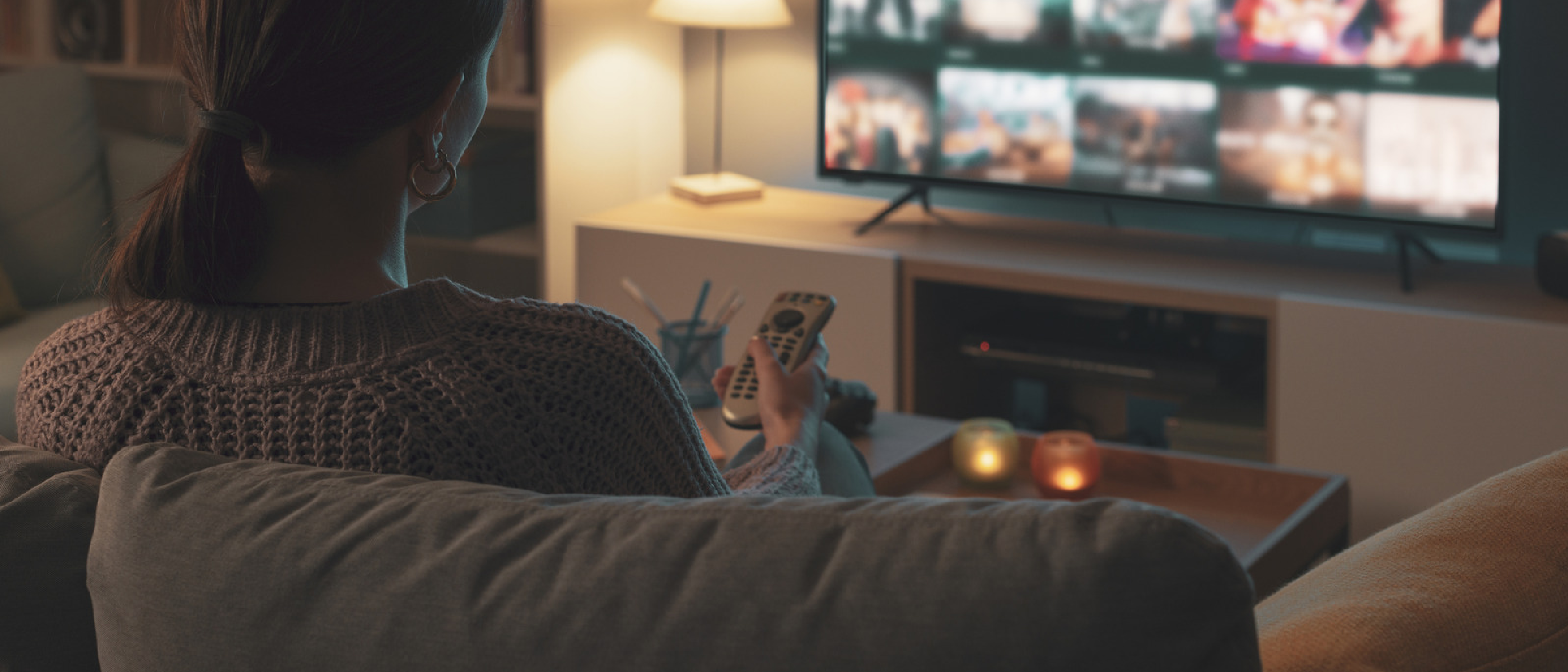
The television landscape has shifted dramatically over the past decade. Smart TVs—those with built‑in internet connectivity, app ecosystems, and voice assistants—have become the default in new retail shelves. Yet, a significant portion of households still own legacy sets that lack these capabilities. For many, purchasing a new smart TV is either unnecessary or financially impractical. Converting an existing TV into a smart device offers a cost‑effective, future‑proof solution that preserves the familiar viewing experience while unlocking modern streaming services, gaming, and accessibility features.
Beyond the economic benefit, this conversion supports digital inclusion. Seniors and individuals with hearing or vision impairments often rely on familiar hardware. By adding a streaming stick or adapter, they gain access to a wide array of content and assistive technologies—such as closed captions, high‑contrast interfaces, and voice navigation—without the learning curve of a brand‑new television.
Market Landscape: From Legacy to Smart
Non‑smart TVs are increasingly rare in mainstream retail. According to recent market reports, over 70 % of new TV purchases now include built‑in smart features. However, the residual market for older models remains substantial, especially in regions where consumers prioritize price over technology. The conversion market has grown accordingly, with streaming stick sales surpassing $1 billion globally in 2025.
Key players in this space include:
- Amazon Fire TV Stick – A plug‑and‑play device that turns any HDMI‑enabled TV into a full‑featured streaming hub.
- Roku Streaming Stick – Known for its extensive channel library and accessibility options.
- Google Chromecast – Offers a lightweight, Wi‑Fi‑only solution for casting content from mobile devices.
- Generic HDMI adapters – Convert RCA or component inputs to HDMI, enabling older TVs to accept modern streaming sticks.
The price point is a decisive factor. Streaming sticks typically start at $30, while entry‑level smart TVs can be found for as low as $150. For many consumers, the $30–$50 investment in a stick is far more attractive than a $200–$300 TV upgrade.
Technical Breakdown: Hardware, Connectivity, and Software
1. Hardware Requirements
| Component | Purpose | Typical Price |
|---|---|---|
| HDMI port | Primary interface for streaming sticks | N/A |
| HDMI‑to‑RCA adapter | Enables older TVs lacking HDMI | $10–$20 |
| Streaming stick (e.g., Fire TV, Roku) | Provides smart TV functionality | $30–$60 |
| Power adapter | Supplies power to the stick | Included with stick |
| Wi‑Fi router | Internet connectivity | $50–$200 (if not already owned) |
Most modern TVs, even older models, include at least one HDMI port. If not, an HDMI‑to‑RCA adapter bridges the gap, allowing the stick to connect to the TV’s analog inputs.
2. Software Ecosystem
Once the hardware is in place, the software layer takes over. Streaming sticks run lightweight operating systems that host app stores, streaming services, and voice assistants. The user interface is typically designed for remote control navigation, with support for:
- Voice commands (via Alexa, Google Assistant, or Roku’s own voice search)
- Remote control (physical or mobile app)
- Smart home integration (e.g., controlling lights or thermostats)
Accessibility features are built into the OS. For example, Roku’s “Audio Description” and “Closed Caption” options are available on most channels, while Amazon’s Fire TV offers “Voice View” for visually impaired users.
3. Connectivity Considerations
- Wi‑Fi vs. Ethernet: While most sticks rely on Wi‑Fi, some models support Ethernet via a USB‑to‑Ethernet adapter. A stable connection is essential for high‑definition streaming.
- Signal strength: Positioning the router near the TV or using a Wi‑Fi extender can mitigate buffering issues.
- Bandwidth: Streaming 4K content requires at least 25 Mbps; 1080p is fine with 5–10 Mbps.
Accessibility and Inclusivity
Smart TVs are not just about entertainment; they are powerful tools for accessibility. Streaming sticks bring a suite of features that can transform the viewing experience for users with disabilities:
- Closed captions and subtitles – Available on most streaming apps.
- Audio description tracks – Narrate visual content for the visually impaired.
- High‑contrast UI themes – Reduce visual clutter and improve readability.
- Voice navigation – Allows hands‑free control for users with limited mobility.
Roku and Samsung smart TVs are particularly noted for their robust accessibility options. By pairing a legacy TV with a Roku stick, seniors can enjoy a familiar screen while accessing modern assistive features. This approach aligns with broader industry trends toward inclusive design, as highlighted in the recent YouTube Fights AI Slop with New Monetization Rules article, which underscores the importance of accessible content delivery.
Future Outlook: What’s Next for TV Conversion?
The convergence of hardware and software is accelerating. Upcoming trends include:
- AI‑driven content recommendation – Streaming sticks will increasingly use machine learning to curate personalized playlists.
- Edge computing – Offloading processing to local devices reduces latency, improving streaming quality.
- Enhanced voice assistants – Integration with smart home ecosystems will allow seamless control of multiple devices.
- Modular hardware upgrades – Future sticks may offer interchangeable modules (e.g., 4K HDR, gaming controllers) to extend functionality.
Moreover, the rise of “smart” appliances suggests that TVs will become part of a larger IoT ecosystem. Converting a legacy TV now positions users to adopt these future capabilities without a full hardware replacement.
Frequently Asked Questions
Q: Can I use a streaming stick with a TV that only has a composite input? A: Yes, but you’ll need an HDMI‑to‑RCA adapter. The adapter converts the analog composite signal to HDMI, allowing the stick to connect.
Q: Will a streaming stick work with a 4K TV? A: Most sticks support 1080p; a few premium models support 4K. Check the device specifications before purchasing.
Q: Do I need a separate Wi‑Fi router? A: If your home already has a Wi‑Fi network, the stick will connect to it. If not, you’ll need a router or a mobile hotspot.
Q: Are there any security concerns with streaming sticks? A: Like any internet‑connected device, they can be vulnerable to exploits. Keeping the device’s firmware updated and using a secure Wi‑Fi network mitigates risks. For more on security in video tech, see the Zoom Annotation Flaw Patched After AI‑Prompt Exploit and the Zoom Zero‑Day Exploit: Remote Takeover of iPhone & Mac articles.
Q: How do I set up closed captions on a streaming stick? A
A: Enabling closed captions is straightforward on most streaming sticks:
Amazon Fire TV Stick
- Press the Home button on the remote, then navigate to Settings → Accessibility → Closed Captions.
- Toggle Closed Captions on. You can also adjust the caption style (font, size, background) under Caption Settings for better readability.
Roku Streaming Stick
- Press the Home button, go to Settings → Accessibility → Captions mode.
- Choose On and select your preferred caption style (default, large, high‑contrast, etc.). Roku also lets you set a global caption style that applies to all channels.
Google Chromecast with Google TV
- From the home screen, select Settings → Accessibility → Captions.
- Turn Captions on and customize the appearance via Caption style. When casting from a phone or tablet, you can also enable captions in the source app (e.g., YouTube, Netflix) and they will carry over to the TV.
Generic Android TV Boxes / Other Sticks
- Look for an Accessibility or Captions option in the device’s Settings menu. Most Android‑based platforms follow the same pattern: Settings → Accessibility → Captions.
Once enabled, most streaming apps (Netflix, Hulu, Disney+, Amazon Prime Video, etc.) will automatically display captions when available. If a particular show or movie lacks caption tracks, the option will be greyed out.
Additional Frequently Asked Questions
Q: My streaming stick keeps freezing or buffering. What can I do? A:
- Check Wi‑Fi signal strength – Use a Wi‑Fi analyzer app to see signal quality near the TV. If it’s weak, reposition the router or add a Wi‑Fi extender.
- Switch to 5 GHz – If your router supports dual‑band, connect the stick to the 5 GHz network for higher throughput and less interference.
- Limit background traffic – Pause large downloads or streaming on other devices while watching high‑definition content.
- Use Ethernet – For sticks that support USB‑to‑Ethernet adapters (e.g., Fire TV Stick 4K), a wired connection can eliminate wireless hiccups.
Q: Can I use Bluetooth headphones with a streaming stick? A: Yes. Most modern sticks support Bluetooth audio pairing:
- Put your headphones in pairing mode.
- On the stick, go to Settings → Remotes & Bluetooth → Add Bluetooth Device and select your headphones.
- Once paired, audio will route to the headphones, which is handy for late‑night viewing or for users with hearing sensitivities.
Q: How do I control the stick with my smartphone? A: All major platforms offer companion apps:
- Amazon Fire TV – Use the Amazon Fire TV app (iOS/Android) to navigate, type, and cast content.
- Roku – The Roku app provides a virtual remote, private listening, and voice search.
- Google TV – The Google TV app lets you browse, launch apps, and cast from your phone. These apps can also serve as a keyboard, making it easier to search for titles or sign in to services.
Q: Is it safe to connect a streaming stick to a TV that’s on a different power strip? A: Absolutely. The stick draws only a few watts and is powered via its USB power adapter. Just ensure the power source is stable and the USB cable is not stretched or kinked, which could cause intermittent power loss.
Q: Do I need to update the firmware manually? A: No. Streaming sticks check for updates automatically and prompt you when a new version is available. It’s good practice to install updates promptly, as they often include security patches and performance improvements.
Q: Can I use a streaming stick on a TV that only has a VGA input? A: Not directly, because VGA is an analog video‑only signal and lacks audio. You would need an HDMI‑to‑VGA converter that also provides an audio input (usually a 3.5 mm jack) and a separate audio output (e.g., RCA or 3.5 mm). These converters are bulkier and more expensive than simple HDMI‑to‑RCA adapters, so consider whether a low‑cost stick is still the best solution for that setup.
Q: What about privacy? Do these sticks track my viewing habits? A: All major platforms collect usage data to improve recommendations and serve ads. You can manage privacy settings in each device’s Settings → Privacy section:
- Turn off Personalized ads or Viewing history if you prefer.
- Review and delete stored data periodically.
- Use a VPN on your home network if you want an extra layer of anonymity.
Step‑by‑Step Setup Guide (Quick Reference)
| Step | Action | Tips |
|---|---|---|
| 1 | Identify HDMI availability – Locate an HDMI port on your TV or purchase an HDMI‑to‑RCA/Component adapter if needed. | Most TVs built after 2005 have at least one HDMI port. |
| 2 | Plug in the streaming stick – Insert the stick into the HDMI slot and connect the power adapter to a wall outlet or TV USB port. | Use the TV’s USB port only if it supplies ≥5 V/1 A. |
| 3 | Select the HDMI input – Use the TV remote to switch to the corresponding HDMI source. | Some TVs label inputs as “HDMI 1”, “HDMI 2”, etc. |
| 4 | Connect to Wi‑Fi – Follow the on‑screen prompts to join your home network. | Prefer 5 GHz for 4K streaming; keep the router within 10 ft if possible. |
| 5 | Sign in to streaming services – Open apps (Netflix, Prime Video, Disney+, etc.) and log in with your credentials. | Use the companion mobile app for easier typing. |
| 6 | Enable accessibility features – Navigate to Settings → Accessibility to turn on captions, audio description, high‑contrast UI, or voice navigation. | Test each feature before settling in. |
| 7 | Enjoy content – Browse, search, and start watching! | Use voice commands for hands‑free operation. |
Conclusion
Turning a legacy television into a smart TV is no longer a tech‑savvy hobby reserved for early adopters; it’s a practical, affordable upgrade that anyone can accomplish in under 15 minutes. By selecting the right streaming stick, ensuring a stable internet connection, and leveraging built‑in accessibility tools, you can breathe new life into an older set while keeping costs low and preserving the familiarity that many users—especially seniors and those with disabilities—value.
The market’s shift toward ubiquitous smart displays means that even today’s “dumb” TVs will eventually feel out‑of‑step. However, with a modest investment of $30‑$60, you can future‑proof your viewing experience, enjoy personalized content recommendations powered by AI, and stay connected to the expanding ecosystem of voice‑controlled smart homes. Whether you’re looking to save money, reduce electronic waste, or simply avoid the learning curve of a brand‑new TV, the streaming‑stick route offers a win‑win solution that aligns with both budgetary and inclusive design goals.
So, dust off that old TV, grab a stick, and start streaming—your favorite shows, movies, and accessible features are just a click away.
Source: Original Article