






Why Slow Downloads Matter in a Hyper‑Connected Home
Every household now runs multiple streams, cloud backups, gaming sessions, and smart‑home traffic simultaneously. When a single video buffers or a large file crawls at a snail’s pace, the frustration is palpable—“There are few things more infuriating than a video buffering, a game lagging or a file downloading slower than you had hoped it would.” The root cause is rarely the ISP alone; the router acts as the traffic cop for every device. A mis‑configured or outdated router can throttle the entire network, turning a 300 Mbps broadband pipe into a bottleneck.
Beyond user annoyance, poor router performance can impact work‑from‑home productivity, increase latency for video calls, and even raise security risks when firmware lags behind. Understanding the technical levers you can pull is essential for maintaining a resilient home network.
Step 1: Verify Your Baseline Internet Speed
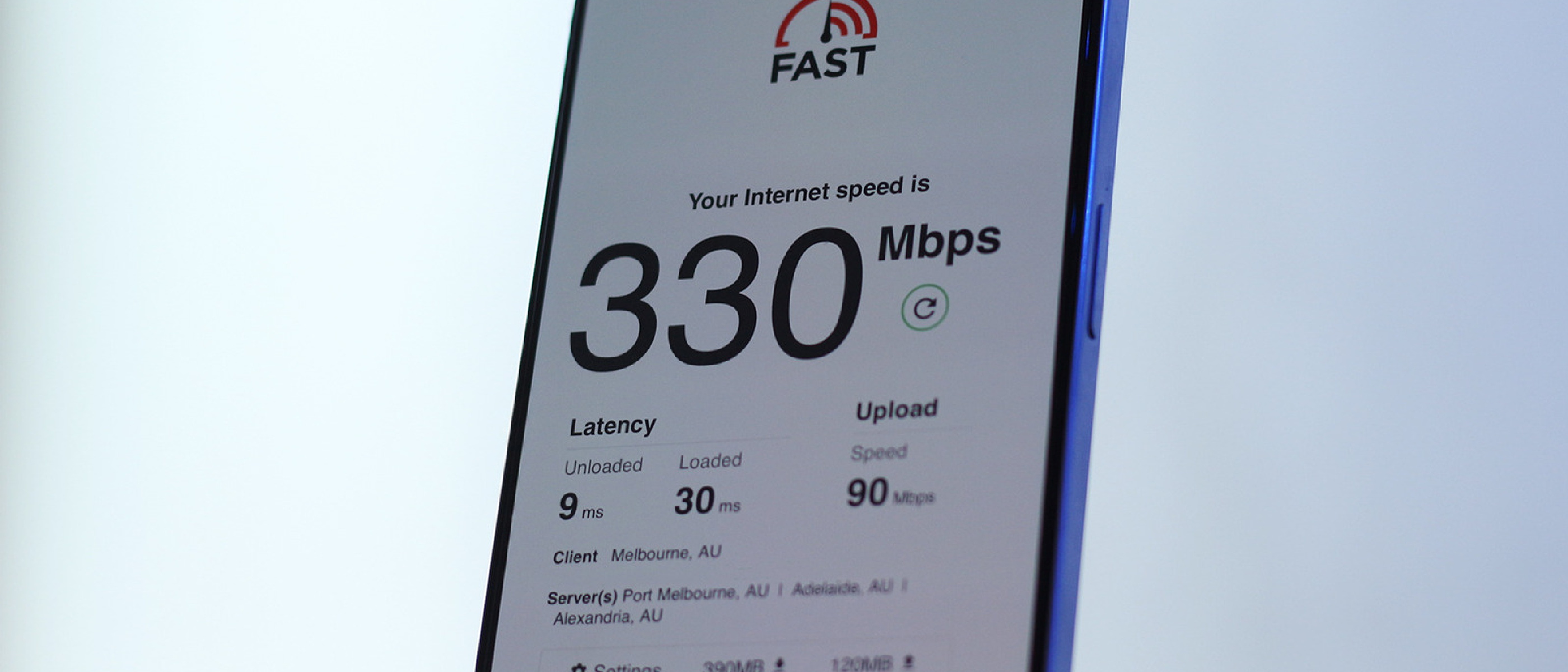
Before tweaking anything, confirm that your ISP delivers the advertised speed. Use a reputable speed‑test service and compare the results to the plan you pay for. The Speedtest Global Index shows the median US broadband speed sits above 300 Mbps, which is more than enough for 4K streaming and large downloads. If your test falls significantly short, contact your provider first—no amount of router tweaking can compensate for a throttled ISP connection.
Quick Checklist
- Run a test on a wired device (Ethernet) to eliminate Wi‑Fi variables.
- Test at different times of day to rule out peak‑hour congestion.
- Record both download and upload figures; asymmetrical issues can affect cloud backups.
Step 2: Optimize Router Placement for Maximum Coverage
Wi‑Fi signals behave like light: they weaken with distance, obstacles, and interference. A centrally located router reduces the number of walls and floors the signal must traverse, delivering a more uniform signal strength throughout the home.
Practical Placement Tips
- Center of the home: Place the router on a high shelf in a central room rather than a corner or basement.
- Clear of electronics: Microwaves, cordless phones, and baby monitors operate on similar frequencies and can cause signal degradation.
- Antenna orientation: If your router has external antennas, spread them out and angle them perpendicular to each other (one vertical, one horizontal) to improve both floor‑level and overhead coverage.
Step 3: Switch to the 5 GHz Band When Possible
The 2.4 GHz band offers longer range but caps at roughly 100 Mbps and is crowded with legacy devices, Bluetooth, and neighboring Wi‑Fi networks. The 5 GHz band, by contrast, supports gigabit‑class speeds and suffers less interference, though its range is shorter.
How to Ensure Devices Use 5 GHz
- Separate SSIDs: Many routers broadcast distinct network names for each band (e.g., Home‑2.4G and Home‑5G). Connect bandwidth‑intensive devices—gaming consoles, PCs, streaming boxes—to the 5 GHz SSID.
- Band‑steering: If your router supports automatic band‑steering, enable it. The router will dynamically assign devices to the optimal band based on signal strength and traffic load.
- Device compatibility: Verify that the client device supports 802.11ac or newer; older hardware may be limited to 2.4 GHz.
Step 4: Diagnose and Eliminate Bufferbloat
Bufferbloat is the accumulation of excessive data in a router’s buffers, causing latency spikes even when bandwidth appears sufficient. The symptom is a sudden increase in ping or choppy video playback during large downloads.
Testing for Bufferbloat
- Visit Waveform’s online bufferbloat test and run a quick assessment. The test measures latency under load and reports whether your network suffers from bufferbloat.
Implementing Smart Queue Management (SQM)
Most modern routers include a QoS (Quality of Service) feature called Smart Queue Management. Enabling SQM caps the amount of data each device can queue, smoothing traffic flow.
How to enable SQM:
- Log into the router’s web interface or companion app.
- Navigate to QoS or Advanced Settings.
- Turn on Smart Queue Management or select a preset like Gaming or Streaming.
- Save and reboot the router.
SQM prevents a single device from monopolizing bandwidth, dramatically reducing latency spikes and improving overall responsiveness.
Step 5: Routine Router Maintenance
Even the best hardware degrades without proper care. Simple maintenance steps can restore performance without a hardware purchase.
Maintenance Checklist
- Power cycle: Unplug the router for 30 seconds and plug it back in. This clears temporary caches and resolves minor glitches.
- Firmware updates: Check the router’s web UI or mobile app for the latest firmware. Updates often contain performance optimizations, bug fixes, and critical security patches.
- Factory reset: As a last resort, perform a factory reset to purge misconfigurations. Remember to back up your settings or note down SSID, password, and custom configurations before resetting.
Step 6: When to Upgrade Your Router
If you’ve exhausted placement, band, and QoS tweaks yet still experience sluggishness, the router itself may be the bottleneck. Older models often rely on legacy Wi‑Fi standards (802.11b/g/n) that cap throughput and lack modern features like MU‑MIMO, OFDMA, and built‑in SQM.
Choosing a New Router
- Wi‑Fi 6 (802.11ax) or Wi‑Fi 6E: Offers higher per‑device speeds, better handling of dense environments, and native support for 5 GHz and 6 GHz bands.
- Hardware specs: Look for multi‑gigabit Ethernet ports, a powerful CPU, and at least 256 MB of RAM for smooth QoS processing.
- Future‑proofing: Devices that support WPA3 encryption and have automatic firmware updates reduce long‑term maintenance.
If you’re hunting for deals, keep an eye on seasonal sales such as the Woot Prime Day Event where routers often see steep discounts. Upgrading during a promotion can deliver a high‑performance device at a fraction of the regular price.
Industry Impact: Bufferbloat and the Rise of Smart QoS
Bufferbloat has been a silent performance killer for years, affecting everything from video streaming to online gaming. The industry’s response—integrating SQM directly into consumer routers—has democratized what was once a niche, router‑firmware‑flashing solution. Major manufacturers now ship devices with default QoS profiles, meaning even non‑technical users benefit from lower latency without manual configuration.
The shift also influences ISP equipment design. As home routers become smarter, ISPs can offload more traffic shaping to the edge, reducing backbone congestion. This symbiotic evolution underscores why understanding router-level tweaks remains crucial for end‑users.
Future Outlook: Wi‑Fi 7 and Beyond
The upcoming Wi‑Fi 7 (802.11be) standard promises multi‑gigabit speeds, even lower latency, and advanced scheduling algorithms that further mitigate bufferbloat. While consumer‑grade Wi‑Fi 7 routers won’t be mainstream until 2025‑2026, early adopters will benefit from features like Multi‑Link Operation (MLO), which can simultaneously use multiple frequency bands for a single stream—effectively eliminating the need to manually choose 2.4 GHz vs. 5 GHz.
In the meantime, mastering the current toolbox—placement, band selection, SQM, and firmware—ensures your network remains resilient as device counts continue to climb.
FAQ
Q1: My speed test shows 300 Mbps on Ethernet but only 80 Mbps on Wi‑Fi. What should I do?
A: Verify that your device is connected to the 5 GHz band, ensure the router’s antennas are properly oriented, and enable SQM. If performance remains low, consider a Wi‑Fi 6 router.
Q2: Does turning off Wi‑Fi 2.4 GHz improve overall speed?
A: Not necessarily. 2.4 GHz provides better range for distant devices. Instead, keep both bands active and let band‑steering allocate devices appropriately.
Q3: How often should I update router firmware?
A: Check monthly. Many routers auto‑notify you of updates; enable automatic installation if available.
Q4: Can a router’s QoS settings hurt performance for some devices?
A: Misconfigured QoS can prioritize the wrong traffic. Use preset profiles (Gaming, Streaming) or let the router’s AI‑driven QoS handle allocation.
Q5: Is a factory reset safe for my network?
A: It wipes all custom settings, so back up SSID, passwords, and any port‑forwarding rules before resetting.
By systematically verifying your ISP speed, optimizing router placement, leveraging the 5 GHz band, eliminating bufferbloat with SQM, maintaining firmware, and recognizing when hardware replacement is warranted, you can transform a sluggish home network into a high‑performance backbone for work, play, and everything in between.
Source: Original Article