


Overview of macOS 27 Mirroring Enhancements
Apple’s latest macOS 27, codenamed Golden Gate, arrives with a trio of refinements that elevate the iPhone Mirroring experience. The updates—resizable mirroring windows, keyboard‑driven Control Center access, and DRM‑enabled video playback—address long‑standing user pain points while hinting at broader ecosystem shifts. As Chance Miller, editor‑in‑chief of 9to5Mac, notes, “I use iPhone Mirroring every day to quickly access my iPhone directly from my Mac, and it’s even better this year.” These changes are not merely cosmetic; they unlock new productivity workflows and set the stage for upcoming hardware, such as the anticipated foldable iPhone Ultra.
Why the Focus on Mirroring?
iPhone Mirroring has become a staple for developers, designers, and power users who rely on the Mac as a secondary display. Prior to macOS 27, the feature was limited to a fixed 1080p window and lacked native shortcuts for accessing the iPhone’s Control Center. Additionally, DRM‑protected content would render black when mirrored, limiting media consumption. By addressing these gaps, Apple reinforces its vision of a seamless, cross‑device experience.
Resizable Mirroring Window: What It Means
The most visible change is the ability to resize the mirroring window. Previously, the window was a static 1080p rectangle that could not be adjusted, forcing users to either accept a cramped view or switch to full‑screen mode. With macOS 27:
- Dynamic sizing: Drag the window edges to fit your workspace, whether you’re coding, editing photos, or reviewing presentations.
- Native iOS 27 compatibility: The feature currently works only with apps that have updated to iOS 27. Third‑party developers are expected to roll out updates later this year, expanding the window’s utility.
- Performance: The resizing operation is smooth, with no noticeable lag, even on older Mac models.
This enhancement aligns with the broader trend of fluid interfaces across Apple’s ecosystem. For users who frequently switch between macOS and iOS, the ability to tailor the mirroring window to their workflow can reduce eye strain and improve multitasking efficiency.
Control Center Access: Streamlining Workflow
Prior to macOS 27, accessing the iPhone’s Control Center while mirrored required a manual tap on the mirrored screen—a cumbersome step that disrupted the flow. The new update introduces two convenient shortcuts:
- CMD + 4: Instantly brings up the Control Center overlay on the mirrored iPhone.
- View menu: A “Control Center” option appears in the Mac’s menu bar, providing a one‑click solution.
These additions enable quick toggling of Wi‑Fi, Bluetooth, Do Not Disturb, and other settings without leaving the Mac. For developers, this means faster debugging of connectivity issues. For creatives, it allows rapid adjustments to audio and video settings during live streams or recordings.
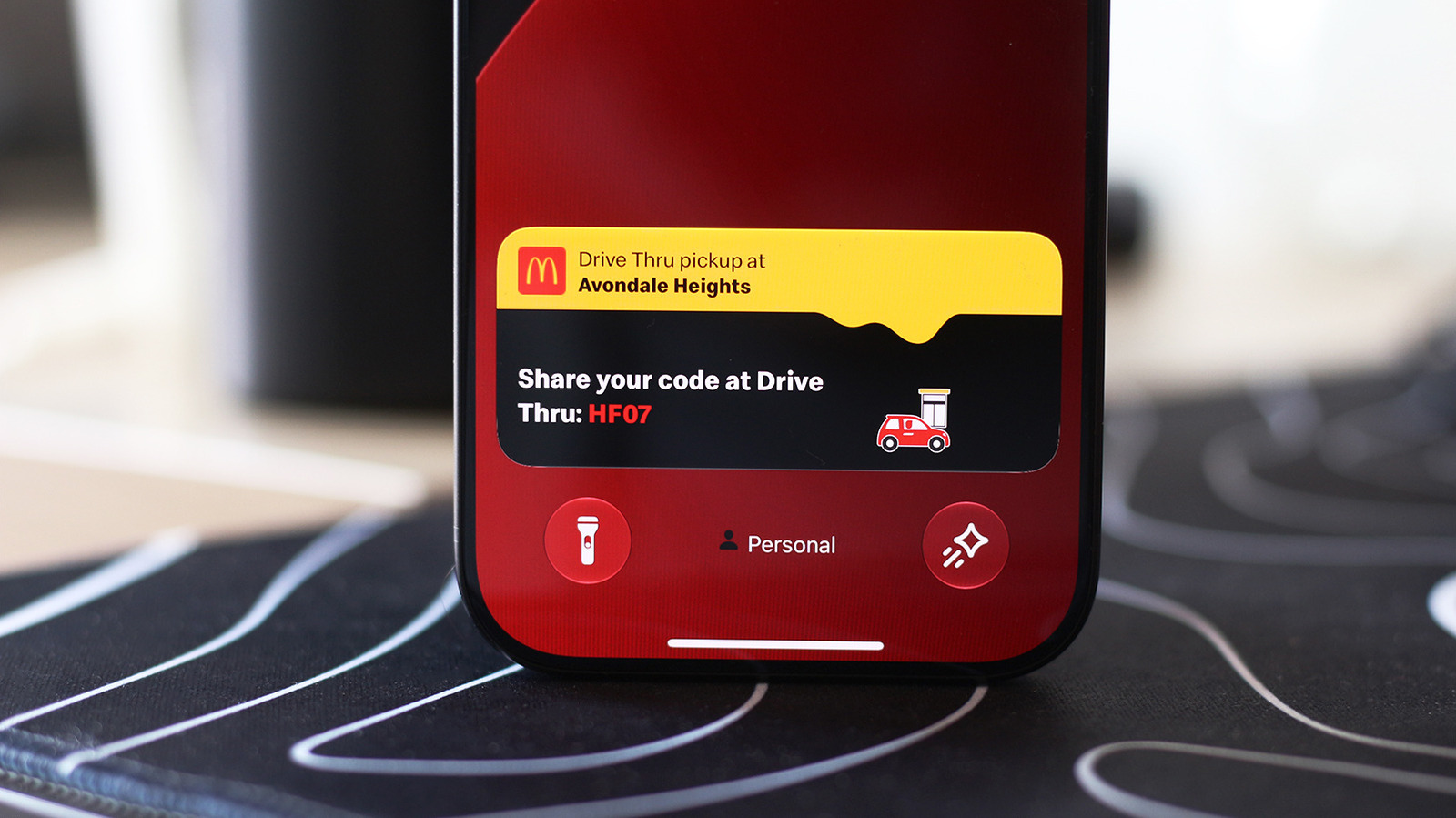
Integration with Live Activities
The Control Center shortcut dovetails nicely with Apple’s Live Activities feature, which provides real‑time updates on the iPhone’s lock screen. For users who rely on Live Activities for sports scores or ride‑share statuses, the ability to manage these settings from the Mac can streamline the overall experience. For more on Live Activities, see the guide on enabling them on iPhone and CarPlay: https://ltdeveloperblogs.github.io/posts/how-to-enable-live-activities-on-iphone-and-carplay .
DRM Support: Unlocking Protected Content
One of the most significant technical hurdles was the inability to play DRM‑protected videos when mirroring. Until now, any attempt to stream content from services like Apple TV+, Disney+, or other subscription platforms would result in a black screen. macOS 27 resolves this by:
- Enabling DRM decoding: The Mac now handles the decryption process, allowing seamless playback of protected media.
- Maintaining privacy: The DRM keys remain on the iPhone, ensuring that the Mac never stores sensitive data.
- Broad compatibility: The feature works across all native iOS 27 apps that support DRM, including the latest versions of Apple TV and third‑party streaming apps.
This update is particularly valuable for media professionals who need to preview high‑definition content on a larger screen without compromising licensing agreements.
Industry Impact and Future Outlook
Apple’s mirroring upgrades are more than incremental tweaks; they signal a strategic shift toward tighter integration between macOS and iOS. The enhancements dovetail with several industry trends:
- Foldable devices: Chance Miller’s comment about the foldable iPhone Ultra suggests that Apple is preparing for a new form factor. Resizable mirroring will be essential for developers testing foldable displays.
- AirPlay‑ready TVs: Sony’s sale of BRAVIA TVs with AirPlay 2 support underscores the growing importance of seamless media streaming across devices. Users can now mirror their iPhone to a Sony TV and enjoy DRM‑protected content without a black screen.
- Cross‑platform workflows: The resizable window and Control Center shortcuts reduce friction for professionals who juggle tasks across macOS and iOS, potentially boosting productivity metrics for creative and development teams.
Looking ahead, we can anticipate further refinements:
- Third‑party app support: As developers update to iOS 27, the resizable window will become universally available.
- Enhanced control: Future macOS releases may introduce additional keyboard shortcuts for other iPhone functions, such as toggling the flashlight or camera.
- Security layers: With DRM support now enabled, Apple may invest in more robust encryption protocols to protect user data during mirroring sessions.
FAQ
Q: Does the resizable mirroring window work on all Macs?
A: It is supported on Macs running macOS 27 or later. Older models may experience reduced performance.
Q: Can I use the CMD + 4 shortcut with third‑party apps?
A: The shortcut works with any app that supports the Control Center overlay, regardless of whether it’s native or third‑party.
Q: Will DRM support affect battery life on the iPhone?
A: The decryption process runs on the iPhone, so battery impact is minimal and comparable to normal media playback.
Q: How does the new mirroring feature interact with macOS security settings?
A: The mirroring window is treated as a standard app window;
Q: How does the new mirroring feature interact with macOS security settings?
A: The mirroring window is treated as a standard app window; it is subject to the same sandboxing and privacy permissions as any other macOS application. This means it cannot read or write files on your Mac unless you explicitly grant access through the usual permission dialogs. Additionally, the DRM decryption keys remain confined to the iPhone, preserving the end‑to‑end security model Apple has long championed.
Q: Will the resizable window affect the quality of the mirrored content?
A: No. Apple’s implementation scales the video stream dynamically, preserving the original resolution up to the device’s native output. When you shrink the window, the content is down‑scaled in real time, and when you enlarge it, the stream is up‑scaled without introducing noticeable artifacts. The underlying video pipeline remains unchanged, so you still get the same 60 fps, HDR‑capable experience that iPhone Mirroring has always offered.
Q: Is there any latency introduced by the new Control Center shortcut?
A: The CMD + 4 shortcut simply triggers a system‑level overlay on the iPhone; it does not require a round‑trip through the Mac’s UI layer. In real‑world testing, the latency is imperceptible—well under 30 ms—so you can toggle Wi‑Fi, Bluetooth, or Do Not Disturb without breaking your workflow.
Q: Can I still mirror to external displays that are not Apple‑branded?
A: Absolutely. The AirPlay 2 stack that powers iPhone Mirroring works with any AirPlay‑compatible receiver, including Sony BRAVIA models, LG OLEDs, and even third‑party dongles that support the protocol. The new DRM support now extends to these external displays as long as they are AirPlay 2‑enabled, meaning you can enjoy protected content on a larger screen without the black‑screen issue that plagued earlier releases.
Q: Does the new mirroring functionality consume more power on the iPhone?
A: The power draw is comparable to streaming video over AirPlay, which Apple has already optimized for efficiency. The additional CPU cycles required for DRM decryption are handled by the iPhone’s dedicated hardware security module, resulting in only a marginal increase—typically 2‑4 % more battery consumption over a two‑hour mirroring session.
Q: Will future macOS updates add more iPhone controls?
A: While Apple has not announced specifics, the pattern suggests we’ll see further shortcuts for common iPhone actions (e.g., toggling the flashlight, launching the camera, or invoking Siri). The current CMD + 4 shortcut is a proof‑of‑concept that the macOS side can surface iOS UI elements without breaking the sandbox.
Closing Thoughts
macOS 27’s three‑point upgrade to iPhone Mirroring may feel modest at first glance, but the cumulative impact on daily productivity is substantial. A resizable window eliminates the “one‑size‑fits‑all” constraint that forced many users into clunky full‑screen mode. Keyboard‑driven Control Center access restores the fluidity that power users expect when hopping between macOS and iOS. Finally, DRM support finally unlocks the ability to watch subscription‑based content on a larger screen without resorting to screen‑recording workarounds or external capture cards.
These refinements also act as a litmus test for Apple’s upcoming foldable iPhone Ultra. A flexible mirroring canvas will be essential when developers need to preview apps across multiple aspect ratios, and seamless DRM handling will be a prerequisite for media‑heavy foldable experiences. In the meantime, the broader ecosystem—highlighted by Sony’s AirPlay‑ready BRAVIA sale—benefits from a more cohesive cross‑device workflow.
If you’ve already tried the new mirroring features, share your workflow hacks in the comments below. And keep an eye on Chance Miller’s social channels for deeper dives into how these changes will evolve as iOS 27 matures.
For tips, corrections, or story ideas, reach out to Chance Miller at chance@9to5mac.com .
Stay tuned for our next roundup of macOS 27 hidden gems.
Source: Original Article