
Overview: The Apple TV Remote Landscape
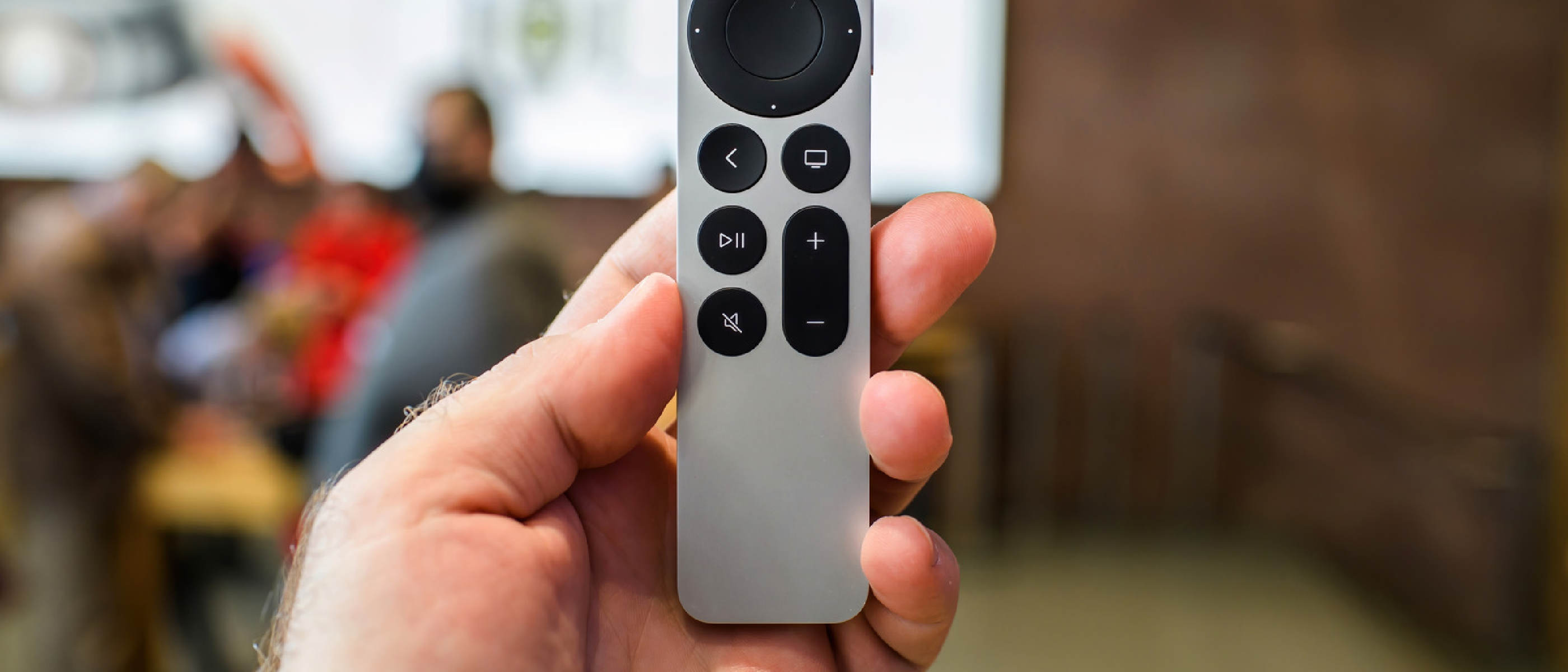
Apple’s Siri Remote has evolved through three major hardware generations: the original aluminum remote, the white plastic version, and the current glass‑capped, rechargeable model that ships with Apple TV 4K. Despite the sleek design, users frequently encounter three symptom clusters:
- Unresponsiveness – pressing buttons yields no on‑screen feedback.
- Lost pairing – the remote shows a “disconnected” icon or simply stops controlling the device.
- Preparation for resale – owners need a clean slate before handing the device to a new user.
Understanding the underlying technology helps demystify why a simple button combo can revive a seemingly dead remote. All Siri Remotes communicate via Bluetooth Low Energy (BLE) and, for older models, infrared (IR). The BLE link is managed by tvOS, which monitors signal strength (RSSI) and battery health. When the link degrades, the OS prompts a re‑pair, but the prompt can be missed, leaving the remote in limbo.
Why Resetting Matters: User Experience and Brand Perception
A remote that refuses to respond is more than an inconvenience; it directly impacts Apple’s reputation for seamless integration. In a market where competitors like Nintendo’s Switch controller (see the recent free update that added eight‑player support) emphasize plug‑and‑play reliability, Apple must ensure its own peripheral lives up to the “no‑setup” promise.
From a support‑cost perspective, each unpaired remote generates a ticket. By publishing a clear, step‑by‑step reset guide, Apple reduces call‑center volume and improves Net Promoter Score (NPS). Moreover, a reliable remote extends the usable lifespan of the Apple TV hardware, delaying upgrades and reinforcing the ecosystem’s lock‑in effect.
Detailed Reset Procedures
Below are the exact button sequences for each remote generation. Perform the steps in a quiet environment, with the remote within three inches of the Apple TV to guarantee a strong BLE handshake.
First‑Gen (or later) Siri Remote – Reset & Re‑pair
- Power cycle the Apple TV – unplug the unit for at least 6 seconds, then plug it back in.
- Enter reset mode – simultaneously press and hold the TV/Control Center button and Volume Down for 5 seconds.
- Wait for the on‑screen “Remote disconnected” message.
- Re‑pair – press and hold Back (or Menu) and Volume Up for another 5 seconds. The Apple TV will display “Remote Connected”.
Aluminum or White Apple TV Remote – Reset
- Point the remote directly at the TV screen.
- Hold Menu and Home for 6 seconds.
- When the status light on the Apple TV blinks, press and hold Menu and Right for an additional 6 seconds.
- The remote should now be paired; a confirmation appears on the TV.
Remote‑Only Restart (All Models)
- Press and hold TV/Control Center + Volume Down for ~5 seconds.
- Observe the Apple TV status light flicker off and on.
- Release the buttons, wait 10 seconds, then press any button.
- A “Remote Connected” banner confirms success.
General Re‑pairing (Universal)
- Position the remote ~3 inches from the Apple TV.
- Hold Back (or Menu) + Volume Up for 5 seconds.
- If prompted, place the remote on top of the Apple TV to complete the handshake.
- Should the pairing fail, repeat after a full power‑cycle (unplug for 10 seconds).
Battery & Signal Diagnostics
Checking Battery Level
Navigate to Settings → Remotes and Devices → Remote → Battery Level. The UI shows a percentage for the built‑in rechargeable battery or a “Low” indicator for replaceable cells.
- Aluminum models – open the battery compartment with a coin, replace the AA cell if needed.
- White models – use a paperclip to pry open the cover and swap the battery.
- Current models – connect the remote to a Lightning cable for a quick charge; a full charge takes about 2 hours.
Bluetooth RSSI Signal Strength (tvOS 18.0+)
Apple introduced a diagnostic view in tvOS 18.0 that displays real‑time RSSI values. Access it via Settings → Remotes and Devices → Remote. Values above –60 dBm indicate a strong link; anything below –80 dBm suggests interference (e.g., other BLE devices, thick walls, or metal enclosures). Adjust the remote’s position or remove nearby sources to improve connectivity.
Security Considerations
Bluetooth pairing is authenticated, but a weak RSSI can expose the link to “relay attacks.” For readers interested in broader security implications, the recent [153M Driver Licenses Leak Exposes ID Verification Gaps]( https://ltdeveloperblogs.github.io/posts/digital-scans-of-more-than-153-million-drivers-licenses-leaked-to-the-dark-web ) article illustrates how data leakage can arise from insufficient encryption—an analogous risk for any BLE peripheral.
System‑Level Troubleshooting & Alternative Controls
System Restart
If the remote still fails after re‑pairing, perform a software reboot: Settings → System → Restart. This clears any lingering tvOS Bluetooth stack issues.
Using an iPhone or iPad as a Remote
iOS devices can act as a virtual Siri Remote:
- Open Control Center (swipe down from the top‑right corner).
- Tap the Apple TV Remote icon.
- Select your Apple TV from the list; the iOS device now mirrors the remote’s functions, including Siri voice commands.
This method is invaluable when the physical remote’s battery is dead or the BLE module is malfunctioning.
Factory Reset (Last Resort)
A full factory reset erases all settings, apps, and personal data. Initiate it via Settings → System → Reset. Use this only when you plan to sell or give away the Apple TV, or when software corruption persists after multiple re‑pairs.
Future Outlook & Best Practices
Apple continues to refine remote ergonomics, but the underlying BLE protocol remains unchanged. Anticipated tvOS updates may introduce:
- Automatic RSSI alerts that proactively suggest re‑pairing before disconnection occurs.
- Enhanced battery health reporting, similar to iPhone’s “Maximum Capacity” metric.
In the meantime, users can adopt a few best‑practice habits:
- Keep the remote within a 5‑foot radius of the Apple TV during regular use.
- Charge the remote nightly to avoid sudden power loss.
- Periodically check the RSSI after adding new Bluetooth devices to the home (e.g., smart speakers, fitness trackers).
These steps not only extend the remote’s lifespan but also reduce the likelihood
these steps not only extend the remote’s lifespan but also reduce the likelihood of encountering the dreaded “Remote disconnected” icon during a binge‑watch session.
Advanced Tips for Power Users
| Tip | How to Do It | Why It Helps |
|---|---|---|
| Disable Nearby Bluetooth Interference | Turn off or relocate other BLE devices (e.g., smart locks, wireless headphones) that operate on the 2.4 GHz band. | Reduces signal crowding, giving the remote a cleaner channel. |
| Create a Dedicated “Remote Zone” | Keep the Apple TV and its remote on the same piece of furniture, away from metal objects or thick glass. | Metal and glass can attenuate BLE signals, causing occasional drop‑outs. |
| Use a USB‑C Power Bank for Continuous Charging | Connect the remote to a low‑power USB‑C power bank (5 V / 0.5 A) when the TV is in a permanent “home theater” setup. | Guarantees the remote never runs out of juice, eliminating one common failure point. |
| Reset the Bluetooth Stack via tvOS Debug Menu (for developers) | Open Settings → System → Debug → Reset Bluetooth. Confirm the reset and let the Apple TV reboot. | Clears any corrupted pairing tables that can persist after multiple remote swaps. |
| Log RSSI Over Time | Use the Remote Diagnostics app (available on the App Store) to record RSSI values while you move around the room. | Identifies dead zones where the remote may need a line‑of‑sight path to the Apple TV. |
Pro tip: If you notice the RSSI hovering around –75 dBm consistently, consider adding a small Bluetooth repeater (e.g., a USB‑C dongle) to the Apple TV’s HDMI‑CEC port using a compatible adapter. This can boost the effective range without compromising security.
When All Else Fails: Contacting Apple Support
Even with meticulous troubleshooting, hardware failures can occur. If you’ve exhausted the reset, re‑pair, battery, and RSSI checks, follow these steps before opening a support ticket:
- Document the Symptom – Take a screenshot of the “Remote disconnected” banner or note the exact button combination that fails.
- Record Serial Numbers – Locate the Apple TV serial (Settings → System → About) and the remote’s model number (printed on the back of the aluminum remote or in Settings → Remotes and Devices → Remote for newer models).
- Check Warranty Status – Visit apple.com/checkcoverage and enter the Apple TV serial. If still under warranty or AppleCare+, you may qualify for a free remote replacement.
- Use the Apple Support App – Initiate a chat or schedule a call; the app can automatically attach diagnostic logs, speeding up the resolution.
Apple’s support engineers often request a remote‑only restart (the TV/Control Center + Volume Down combo) as a final sanity check, so have that ready.
Conclusion: A Remote That Works as Hard as You Do
The Apple TV remote is more than a simple clicker; it’s the bridge between your living‑room entertainment ecosystem and the powerful tvOS platform. By understanding the BLE fundamentals, regularly checking battery health, and mastering the reset/re‑pair sequences outlined above, you can keep that bridge sturdy for years to come. Whether you’re prepping the device for a new owner, troubleshooting an intermittent disconnection, or simply ensuring a smooth nightly viewing experience, the steps in this guide empower you to resolve issues without a trip to the Genius Bar.
Remember: a well‑maintained remote not only protects your Apple TV investment but also reinforces the seamless, “just works” reputation that Apple strives to uphold. Keep the remote charged, stay aware of your home’s Bluetooth landscape, and you’ll rarely, if ever, need to hit the “factory reset” button.
Frequently Asked Questions (FAQ)
| Question | Answer |
|---|---|
| My Siri Remote won’t turn on at all. What should I do? | First, connect it to a Lightning‑to‑USB‑C cable and let it charge for at least 15 minutes. If it still shows no response, try the Remote‑Only Restart (TV/Control Center + Volume Down). If the problem persists, the remote’s BLE module may be defective and should be replaced through Apple Support. |
| Do I need to re‑pair the remote after a tvOS software update? | Usually not. tvOS updates preserve existing Bluetooth pairings. However, if you notice lag or missed commands after an update, perform a quick General Re‑pairing (Back/Menu + Volume Up) to refresh the link. |
| Can I use a third‑party universal remote with Apple TV? | Yes, many IR‑based universal remotes work because the Apple TV still supports infrared for basic navigation. For full Siri and touch‑pad functionality, you’ll need an Apple‑branded remote or an iOS device acting as a remote. |
| Is there a way to reset the remote without touching the Apple TV? | The Remote‑Only Restart (TV/Control Center + Volume Down) resets the remote’s BLE connection without unplugging the Apple TV. It’s handy when the TV is mounted behind a wall or otherwise inaccessible. |
| My remote’s battery indicator shows 0 % but the remote still works. Why? | The battery gauge can be slightly inaccurate after many charge cycles. If the remote responds reliably, you can ignore the reading until it drops below 10 % or you notice sluggish behavior. |
| Will a factory reset erase my apps and settings on the Apple TV? | Yes. A factory reset wipes all user data, apps, and account information. Use it only when you intend to sell, give away, or completely reinstall tvOS. |
| How often should I check the RSSI values? | There’s no strict schedule, but it’s wise to check after adding new Bluetooth devices to your home or if you notice intermittent remote lag. A quick glance in Settings → Remotes and Devices → Remote takes less than a minute. |
| Can I pair multiple Siri Remotes to the same Apple TV? | Absolutely. Apple TV supports up to three simultaneous remote pairings. Each remote can be used interchangeably, which is useful for families or when one remote is charging. |
| What’s the difference between the “TV/Control Center” button and the old “Menu” button? | On the 2nd‑generation Siri Remote, the left‑most button was renamed “TV” (or “Control Center” when you swipe down). Functionally, it still acts as the “Menu” button for navigation, but it also opens the Control Center when held. |
| Is there a way to disable the remote’s infrared function? | No. The IR transmitter is built into the remote’s hardware and cannot be disabled via software. It only activates when you point the remote at a device that requires IR (e.g., a TV for power on/off). |
Prepared by the Tech Insights team, September 2026.
Source: Original Article