

What Are Live Activities and Why They Matter
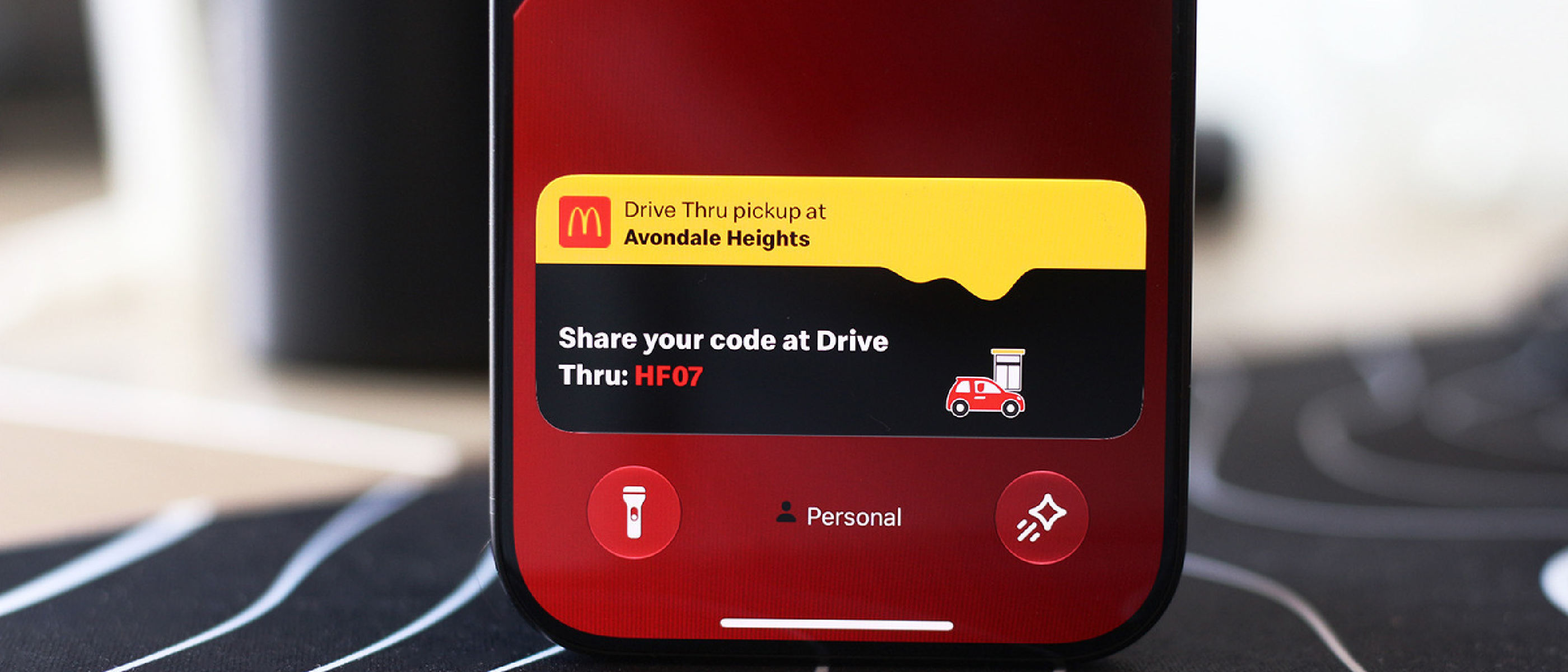
Live Activities are a real‑time UI layer that lives inside Apple’s Dynamic Island on iPhone 14 Pro and later, as well as on the lock screen. Unlike traditional push notifications, they stay visible for the duration of an event, providing continuous feedback without interrupting the user.
Key use‑cases include:
- Countdown timers for cooking or workouts
- Turn‑by‑turn navigation cues while the screen is in use
- Music playback progress and album art
- Live sports scores and game clocks
- Order‑tracking updates from food‑delivery services
- Flight‑status changes and gate information
For drivers, the same information appears on CarPlay’s Dashboard, letting you keep eyes on the road while staying informed. The feature is a direct response to user demand for “always‑on” context, and it gives developers a new canvas for engagement that is less intrusive than alerts but more persistent than background fetch.
Enabling Live Activities on Your iPhone
Activating Live Activities for a specific app is a two‑step process in Settings. The steps are identical for any third‑party app that supports the API.
Open Settings → Apps
Locate the app that isn’t showing a Live Activity.Toggle Live Activities On
Ensure the Live Activities switch is green.(Optional) Enable Notifications
If the activity still doesn’t appear, turn on regular notifications for the app. Some apps use the notification framework as a fallback when the Live Activity payload is delayed.
Enabling Live Activities on the Lock Screen
To see Live Activities when the phone is idle:
- Settings → Face ID & Passcode
- Enter your passcode.
- Scroll to Allow Access When Locked.
- Turn on Live Activities.
Once enabled, the Dynamic Island will continue to display the activity even when the device is locked, giving you a glanceable view of ongoing tasks.
Getting Live Activities on CarPlay
CarPlay automatically mirrors the Live Activity to the Dashboard—the split‑screen area to the left of the app list. If an app occupies the full screen, the activity drops down to a banner at the bottom of the display.
To guarantee that CarPlay shows the activity:
- Settings (in CarPlay) → Live Activities – toggle it on.
- Settings → Suggestions in CarPlay – ensure this is enabled; it powers the automatic placement of activities in the Dashboard.
- Disable Driving Focus if you notice the activity is being suppressed. Driving Focus can silence non‑essential UI elements to reduce distraction.
Disabling Noisy Activities
If a particular app becomes too chatty, you can silence it without turning off the entire feature:
- Settings → Apps → [App Name] → Live Activities – switch off for that app only.
- The same toggle works on both iPhone and CarPlay, keeping your dashboard clean while preserving useful activities from other services.
Technical Breakdown: How Live Activities Work Under the Hood
Apple introduced the Live Activities framework with iOS 16, leveraging the ActivityKit API. Here’s a concise look at the architecture:
| Component | Role |
|---|---|
| ActivityKit | Provides the Swift interface for creating, updating, and ending activities. |
| Dynamic Island | Renders the activity UI on iPhone 14 Pro and later, adapting its size based on the cut‑out. |
| Lock Screen UI | A separate rendering path that mirrors the island when the device is idle. |
| CarPlay Dashboard | A mirrored view that receives activity payloads via the CarPlay framework. |
| Push Notification Service (APNs) | Delivers the initial activity payload; subsequent updates can be sent via push or local updates. |
Lifecycle
- Start – The app calls
Activity<ContentState>.request(attributes:contentState:pushType:). The system validates the request and, if approved, creates a visual representation in the island. - Update – The app can push new state objects using
activity.update(using:). The UI animates to reflect the new data without a full reload. - End – When the event concludes, the app calls
activity.end(dismissalPolicy:). The island collapses back to its idle state.
Developers must supply a static configuration (attributes) that defines the activity’s visual layout and a dynamic state that changes over time. The system enforces privacy limits: only the owning app can modify its activity, and the UI never reveals sensitive data unless the user explicitly grants permission.
Industry Impact and Future Outlook
For Developers
- Higher Engagement – Persistent, glanceable information drives longer app sessions and reduces churn.
- Reduced Notification Fatigue – By moving repetitive updates into Live Activities, developers can keep the notification center cleaner.
- New Monetization Paths – Premium services can offer richer activity widgets (e.g., detailed flight maps) without spamming alerts.
For Car Manufacturers and OEMs
CarPlay’s integration of Live Activities means dashboards can become more than a media hub; they become a real‑time command center. Automakers can now design infotainment layouts that prioritize safety while still delivering timely data—an advantage for brands seeking to differentiate their in‑car experience.
For the Apple Ecosystem
The convergence of Dynamic Island, lock‑screen UI, and CarPlay creates a unified “always‑on” experience across devices. As Apple refines the cut‑out on newer models (the iPhone 18 Pro series further shrinks the pill), the island gains more real estate, allowing developers to pack additional widgets without compromising readability.
Related Reading
For a deeper look at iPhone hardware capabilities that complement Live Activities, see our article on USB‑C: https://ltdeveloperblogs.github.io/posts/your-phones-usb-c-port-does-a-lot-more-than-just-charge-heres-what-else-it-can-do
Security considerations for i
Security considerations for iOS developers – Because Live Activities can expose real‑time data (e.g., location, payment status, or health metrics), Apple enforces strict privacy rules. The activity payload is encrypted in transit via APNs, and the system only renders content that the app explicitly declares in its
ActivityAttributes. Sensitive fields should be marked asprivatein the attribute definition so they never appear on the lock screen or CarPlay unless the user has unlocked the device. Additionally, any activity that includes personally identifiable information (PII) must respect the App Tracking Transparency (ATT) framework; otherwise, the activity will be suppressed.
Troubleshooting Common Issues
| Symptom | Likely Cause | Fix |
|---|---|---|
| No Live Activity appears on the island | Live Activities toggle disabled for the app | Open Settings → Apps → Your App and turn on Live Activities |
| Activity shows on iPhone but not on CarPlay | Driving Focus is active or Suggestions in CarPlay disabled | Disable Driving Focus in Settings → Focus → Driving, then enable Suggestions in CarPlay |
| Activity disappears after a few seconds | Incorrect dismissal policy (e.g., .immediate) used when ending the activity | Use .default or .afterTimeout to let the UI linger until the user dismisses it |
| Stale data persists after an update | Push payload size exceeds 4 KB or malformed JSON | Keep payloads under the limit and validate JSON with a linter before sending |
| Activity updates only when the app is foregrounded | Missing background mode for remote-notification | Add UIBackgroundModes → remote-notification in the app’s Info.plist and ensure APNs certificates are valid |
Best‑Practice Checklist for Shipping Live Activities
- Define clear attributes – Keep the static layout simple; avoid overcrowding the island.
- Limit update frequency – Apple recommends no more than one update per minute for most use‑cases to preserve battery life.
- Graceful fallback – If the activity cannot be displayed (e.g., on older iPhones without Dynamic Island), send a regular push notification instead.
- Test on multiple devices – Verify behavior on iPhone 14 Pro, iPhone 15 Pro, and the latest iPhone 18 Pro to account for cut‑out size variations.
- Respect user preferences – Honor the per‑app Live Activities toggle and do not attempt to re‑enable it programmatically.
- Monitor analytics – Use
ActivityKit’sactivityDidUpdatecallbacks to log engagement metrics, but never send raw user data to analytics services without consent.
Future Directions: What’s Next for Live Activities?
Apple hinted at a broader “Live UI” ecosystem during WWDC 2026. Expect the following evolutions:
- Cross‑device persistence – Activities may persist across iPhone, iPad, Apple Watch, and Vision Pro, allowing a seamless hand‑off when you move from the car to the kitchen.
- Rich media support – Upcoming iOS releases will let developers embed short video loops or animated SVGs inside the island, opening doors for interactive sports replays or live‑stream previews.
- Third‑party Dashboard widgets – CarPlay could soon expose a dedicated “Live Activity Panel” where users can pin their favorite activities, similar to the iPhone’s Control Center widgets.
- AI‑driven summarization – Integration with Apple’s on‑device machine‑learning may automatically condense lengthy activity streams into concise summaries, reducing visual clutter.
Keeping an eye on Apple’s developer documentation and WWDC session videos will ensure you’re ready to adopt these enhancements as they roll out.
Conclusion
Live Activities have transformed the way iOS apps deliver real‑time information, turning the Dynamic Island and CarPlay Dashboard into persistent, glanceable hubs. By correctly enabling the feature in Settings, respecting privacy constraints, and following the best‑practice checklist, developers can provide users with a smoother, less intrusive experience—whether they’re cooking at home, tracking a flight, or navigating downtown traffic. As Apple expands the ecosystem, the opportunities for richer, cross‑device interactions will only grow, making Live Activities a cornerstone of modern iOS and CarPlay development.
Frequently Asked Questions
Q: Do Live Activities work on iPhone models without Dynamic Island?
A: On devices lacking Dynamic Island (e.g., iPhone 13 Pro), the activity appears on the lock screen and in the notification center, but not as an island overlay.
Q: Can I schedule a Live Activity to start automatically at a future time?
A: Yes. Use Activity<Attributes>.request with a pushType of .token and schedule a silent push via your server for the desired start time.
Q: Will Live Activities drain my battery?
A: The framework is optimized for low power. Frequent updates (more than once per minute) can increase consumption, so limit update cadence and use local updates when possible.
Q: How do I test Live Activities in the simulator?
A: Xcode’s iOS 17+ simulators include a “Dynamic Island” view. Enable “Debug → Simulate Live Activity” to send test payloads from the console.
Q: Is there a way to programmatically check if the user has disabled Live Activities for my app?
A: Use ActivityAuthorizationInfo from ActivityKit. It returns .authorized, .denied, or .notDetermined, allowing you to prompt the user to enable the feature in Settings.
Q: Will CarPlay hide Live Activities while the vehicle is in motion?
A: CarPlay respects the Driving Focus mode. If Driving Focus is active, non‑essential activities may be suppressed. Disabling Driving Focus (or configuring your activity as “essential”) restores visibility.
Q: Can I customize the color scheme of a Live Activity?
A: The visual style is controlled by the system to maintain consistency and accessibility. Developers can only supply content (text, icons, progress bars) within the predefined templates.
Q: What happens to a Live Activity if the user force‑quits the app?
A: The activity remains visible until it is explicitly ended by the app or times out. However, the app will not be able to push further updates until it is relaunched.
Q: Are there any limits on the number of concurrent Live Activities per app?
A: Apple allows a maximum of three active Live Activities per app at any given time. Exceeding this limit will cause the oldest activity to be terminated automatically.
Source: Original Article