


Why Clearing Caches Matters on a Mac
Application caches are the invisible workhorses that keep macOS feeling snappy. Every time you open Safari, stream a song in Apple Music, or browse a site in Chrome, the app writes temporary files—image thumbnails, HTML fragments, audio buffers—to the ~/Library/Caches folder. These files let the system avoid re‑downloading the same data, reducing latency and network usage.
However, caches are not self‑purging. Over months or years, they can balloon to several gigabytes, especially for media‑heavy apps or browsers with many open tabs. When an app’s cache grows unchecked, two practical problems emerge:
- Storage pressure – macOS may report “Low Disk Space” even though the user’s personal files are modest.
- Stale data – Corrupted or outdated cache entries can cause visual glitches, incorrect search results, or playback errors.
Understanding the trade‑off is essential: clearing caches does not magically speed up the entire system, but it can free valuable storage and resolve app‑specific glitches. As the Engadget article notes, “Clearing app caches don’t necessarily make your Mac run faster,” yet targeted cache removal remains a valuable troubleshooting tool.
Technical Breakdown of macOS Cache Architecture
macOS separates cache storage into two primary locations:
| Location | Typical Contents | Example Path |
|---|---|---|
~/Library/Caches | General app caches, non‑sandboxed data | ~/Library/Caches/com.apple.Safari |
~/Library/Containers | Sandboxed app data, including caches for apps distributed via the App Store | ~/Library/Containers/com.google.Chrome/Data/Library/Caches |
First‑Party vs. Third‑Party Identification
Apple’s own apps use bundle identifiers that start with com.apple. Recognizing this prefix helps you decide whether a cache belongs to a first‑party service (Safari, Apple Music, Photos) or a third‑party product (Chrome, Slack, Spotify). First‑party apps often expose a built‑in “Clear Cache” option in their preferences, which is safer because the app can purge only the files it knows are safe to delete.
How Caches Are Structured
Inside each cache folder, you’ll find a mixture of:
- Binary blobs – Raw data files used by the app’s rendering engine.
- SQLite databases – Indexes for quick lookup (e.g., Chrome’s
Cachefolder). - Temporary image previews – Thumbnails for Finder, Quick Look, or web pages.
Because macOS does not automatically delete these files until the app decides to, manual intervention is sometimes required, especially after a major app update that changes cache formats.
Step‑by‑Step Guide to Manually Clear Caches
Below is the exact workflow described by Engadget, enriched with extra safety tips.
Open Finder and Reveal the Library Folder
- Press ⌘ + ⇧ + H to jump to your Home directory.
- Press ⌘ + J, then tick “Show Library Folder.” This makes the hidden
Libraryvisible.
Enable Folder Size Calculation
- While still in the Home folder, press ⌘ + J again and enable “Calculate all sizes.” This lets you see how much space each cache folder consumes.
Navigate to the Caches Directory
- Open
~/Library/Caches. - Scan the list for the app you want to target. The folder name usually mirrors the app’s bundle identifier.
- Open
Determine App Type
- If the folder name begins with
com.apple, you’re dealing with a first‑party app. - Otherwise, it’s a third‑party app.
- If the folder name begins with
Delete the Cache Contents
- Open the folder, select all items, and move them to Trash.
- Do not delete the folder itself, only its contents.
Fallback for Sandboxed Apps
- If the cache you need isn’t in
~/Library/Caches, look under~/Library/Containers. - Follow the same “delete‑inside‑folder” rule.
- If the cache you need isn’t in
Quick Safety Checklist
- Close the app before deleting its cache to avoid file‑in‑use errors.
- Back up the cache folder (copy it to Desktop) if you’re unsure; you can restore it later.
- Avoid system‑wide deletions like removing
~/Library/Caches/com.appleentirely; use the app’s internal “Clear Cache” option when available (Safari, Apple Music).
Risks, Best Practices, and When to Act
When to Clear Caches
- App misbehaviour – UI glitches, stale content, or crashes that appear after a recent update.
- Excessive storage consumption – A single app’s cache exceeding 5 GB, as shown by the folder size view.
- Privacy concerns – Browsers storing sensitive page snapshots that you no longer need.
When Not to Clear Caches
- Routine maintenance – macOS already manages temporary files efficiently.
- Performance‑critical periods – Deleting a large cache will cause the app to rebuild it, leading to slower launches for a short window.
Recommended Workflow
- Check built‑in options first – Safari and Apple Music include a “Clear History and Website Data” toggle that safely empties their caches.
- Use Terminal for bulk operations only if you’re comfortable with command‑line syntax (e.g.,
rm -rf ~/Library/Caches/*). - Monitor storage – After clearing, verify that the freed space persists; some apps will immediately recreate essential cache files.
Industry Impact: Cache Management in the Broader macOS Ecosystem
Cache handling is a micro‑cosm of larger trends in operating‑system design:
- Privacy‑first browsers – Chrome, Safari, and emerging privacy‑focused browsers are adding granular cache‑control settings, reflecting user demand for data transparency.
- App Store sandboxing – By isolating caches inside
Containers, Apple reduces the risk of one app corrupting another’s data, a practice that influences enterprise security policies. - Cloud‑sync considerations – Apps like Apple Music now store a portion of their cache in iCloud to enable seamless device switching, blurring the line between local and remote temporary storage.
These trends underscore why understanding the underlying file‑system locations remains valuable for power users and IT administrators alike.
Future Outlook: What Could Change in macOS Cache Handling?
While we cannot predict exact feature releases, several observable directions suggest how macOS cache management may evolve:
- Automated cache pruning – Apple could introduce a system‑wide “Cache Optimizer” that runs during low‑usage periods, similar to iOS’s background app refresh.
- User‑visible cache quotas – Future System Settings may expose per‑app cache limits, allowing users to set caps (e.g., “Safari cache max 2 GB”).
- Enhanced diagnostics – Tools like Activity Monitor might soon display real‑time cache growth graphs, helping users spot runaway apps before they consume excessive space.
Staying informed about these potential changes will help you adapt your maintenance routine without relying on third‑party cleaners that often overreach.
Frequently Asked Questions
Q: Does clearing Safari’s cache delete my bookmarks or passwords? A: No. Safari stores bookmarks and passwords in separate keychain files. Clearing the cache only removes temporary website data.
Q: Will clearing Chrome’s cache sign me out of websites? A: Only if you also delete cookies. The cache folder contains only static resources; cookies live in a different directory.
Q: Can I automate cache clearing with a script?
A: Yes. A simple Bash script that runs rm -rf ~/Library/Caches/com.google.Chrome/* can be scheduled with launchd. Use caution and test on a non‑critical machine first.
Q: How do I know if an app’s cache is corrupted? A: Symptoms include persistent loading spinners, outdated images, or crashes after a recent update. Deleting the cache often resolves these issues.
Q: Are there reputable third‑party utilities for cache cleaning? A: Some utilities, like CleanMyMac X, claim to safely remove caches, but they may also delete files you’d prefer to keep. Manual clearing remains the most transparent method.
Connecting to Related Content
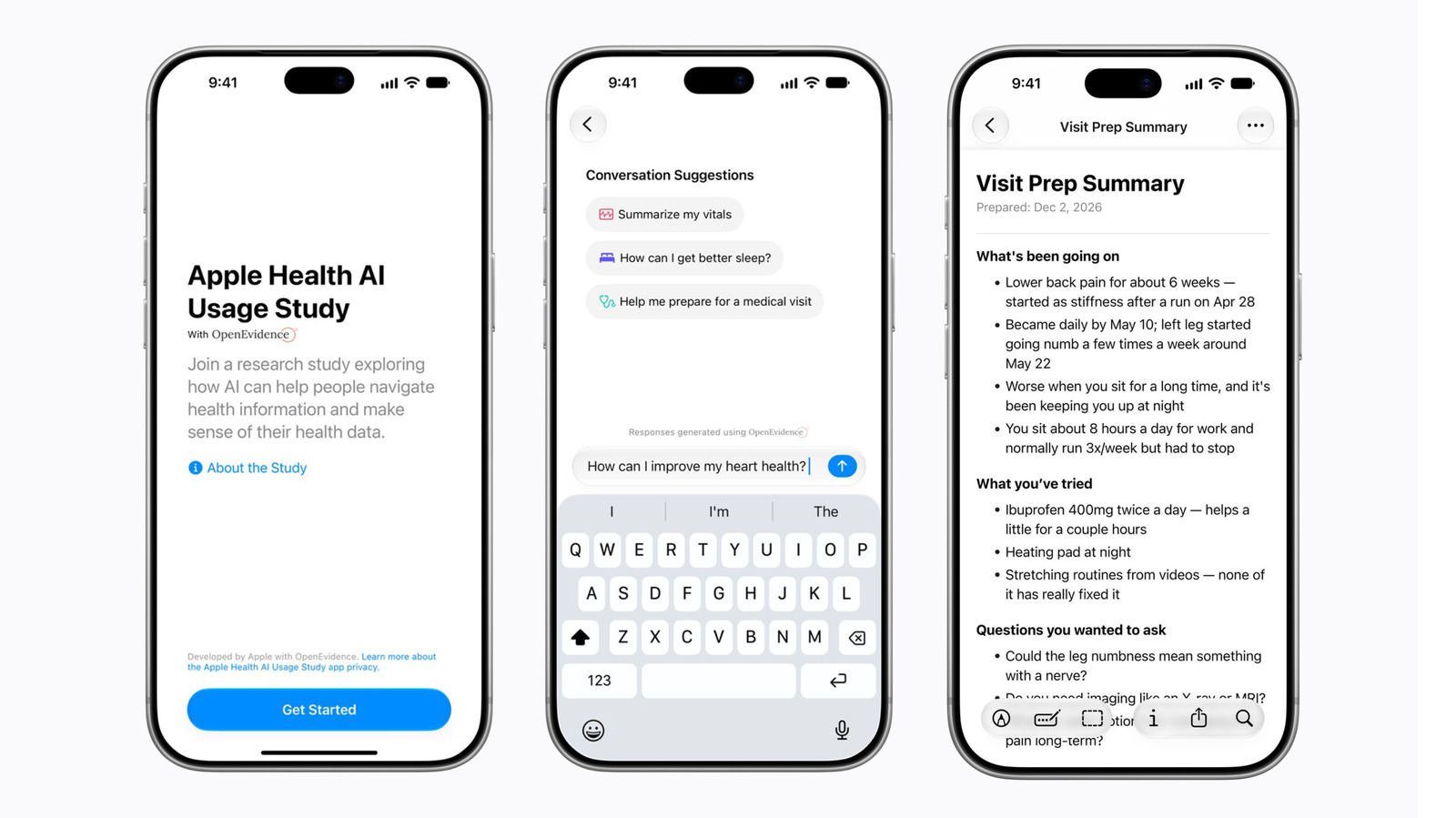
For a deeper look at Apple’s ecosystem and how its software decisions affect performance, see our coverage of the Apple Launches Health AI Usage Study App for Users.
Related Articles
- Optimizing macOS Storage: When to Use “Manage…” vs. Manual Cleanup – A guide to macOS’s built‑in storage‑management tools and how they compare to third‑party cleaners.
- Understanding macOS Sandbox Architecture – Explains why apps are isolated in
~/Library/Containersand what that means for data privacy. - Browser Cache Strategies: Chrome vs. Safari vs. Edge – A side‑by‑side comparison of how the major browsers handle caching, eviction, and user‑controlled clearing.
Conclusion: A Balanced Approach to Cache Maintenance
Clearing application caches on macOS is a targeted troubleshooting technique rather than a blanket performance booster. By:
- Identifying the correct cache location,
- Verifying whether the app offers a native “Clear Cache” option, and
- Deleting only the contents of the cache folder while leaving the folder itself intact,
you can safely reclaim disk space and resolve occasional glitches without jeopardizing app stability. Remember that macOS is designed to manage temporary files automatically; intervene only when you notice concrete symptoms such as unusually large cache folders, persistent UI bugs, or privacy concerns.
Adopting this disciplined, case‑by‑case mindset will keep your Mac running smoothly, preserve the integrity of your data, and avoid the pitfalls of over‑aggressive cleaning utilities.
Expanded FAQ
Q: How can I see the exact size of each app’s cache without opening Finder?
A: Open Terminal and run du -sh ~/Library/Caches/* | sort -h. This prints a human‑readable list sorted from smallest to largest, letting you spot the biggest offenders instantly.
Q: Will clearing the cache affect iCloud sync?
A: No. iCloud sync data lives in ~/Library/Mobile Documents and is separate from local caches. Deleting caches does not remove files that are stored in the cloud.
Q: Some apps (e.g., Adobe Creative Cloud) store caches in deeper subfolders. How do I locate them?
A: Use Finder’s search bar with the term Cache while scoped to ~/Library. You can also filter results by “File Kind → Folder” to narrow down to cache directories.
Q: Is it safe to use sudo rm -rf /Library/Caches/*?
A: Generally not. The system‑wide /Library/Caches directory contains caches used by macOS itself and by privileged services. Deleting them can cause unexpected behavior or require a reboot to regenerate essential files. Stick to the user‑level ~/Library paths unless you have a specific, documented reason.
Q: Can I schedule automatic cache clearing for a specific app?
A: Yes. Create a simple launchd plist that runs a shell script at a chosen interval (e.g., weekly). The script should first verify that the target app is not running (pgrep <appname>) before executing rm -rf on its cache folder. Always test the script manually before enabling the schedule.
Q: Do third‑party cleaning tools ever offer advantages over manual deletion? A: Some reputable tools provide a visual overview of cache sizes and can automate the “close‑app‑then‑delete” workflow, reducing the chance of deleting files while an app is active. However, they may also flag files that are safe to keep, leading to unnecessary deletions. If you choose to use one, review its actions carefully and keep a recent Time Machine backup.
Takeaway: Treat cache clearing as a surgical operation—precise, occasional, and informed. When you follow the steps outlined above, you’ll keep your Mac’s storage lean, your apps happy, and your workflow uninterrupted.
Source: Original Article