





Introduction: The Growing Reliance on External Storage
In today’s digital age, external hard drives and portable SSDs have become indispensable tools for professionals and casual users alike. As noted by Engadget, “Finding the best portable SSD is almost a must in the modern tech landscape.” These devices facilitate seamless data transfer, backup, and storage, making them critical for workflows across industries. However, when a PC fails to recognize an external drive, the consequences can range from minor inconveniences to catastrophic data loss. This article provides a comprehensive troubleshooting guide for both Windows and Mac users, ensuring you can diagnose and resolve issues efficiently.
Why It Matters: The Impact of Unrecognized Drives
The inability to access an external drive can halt productivity and jeopardize critical data. For businesses, this could mean delayed projects or lost client information. Individuals may face the loss of personal files, media collections, or irreplaceable memories. Understanding how to troubleshoot these issues not only saves time but also safeguards against potential data disasters. Implementing the 3-2-1 Rule—maintaining three copies of data on two different media types, with one offsite backup—can mitigate risks, but knowing how to resolve connectivity issues remains essential.
Technical Breakdown: Common Causes of Drive Detection Failure
Before diving into solutions, it’s crucial to understand why external drives may go unrecognized. Common culprits include:
- Hardware Failures: Faulty cables, damaged ports, or insufficient power supply (e.g., missing AC adapters for power-hungry drives).
- Software Glitches: Outdated or corrupt drivers, missing drive letters, or file system errors.
- Operating System Limitations: Incompatibility between the drive’s file system (e.g., exFAT, HFS+) and the OS.
- Physical Damage: Bad sectors or mechanical failures within the drive itself.
Troubleshooting Steps: A Systematic Approach
1. Hardware Checks: The First Line of Defense
Start with these physical inspections to rule out simple issues:
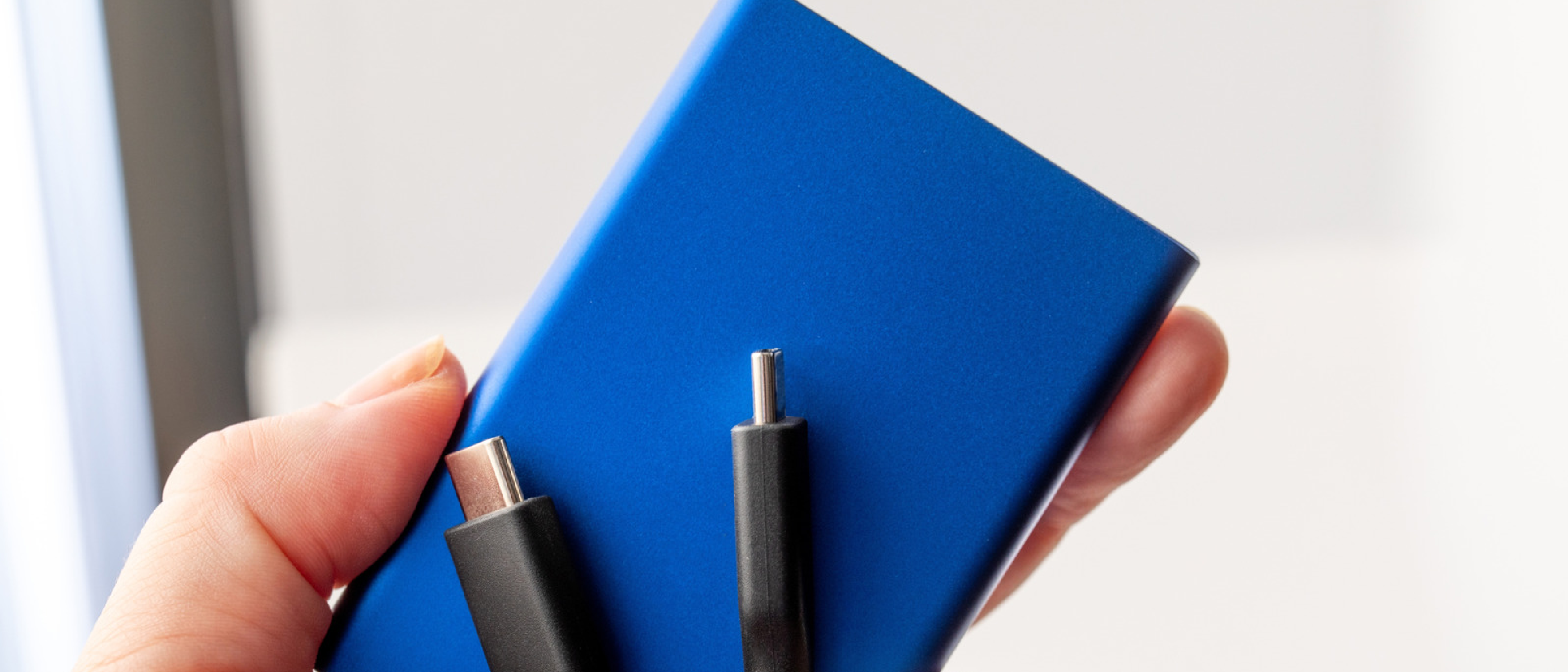
- Port and Cable Testing: Try connecting the drive to a different USB or Thunderbolt port. Swap cables, especially if using older USB 2.0 cables with modern drives.
- Power Verification: Ensure the drive is receiving power. If it has a dedicated power jack, use the provided AC adapter. For bus-powered drives, test on a higher-powered port.
- Cross-Platform Testing: Connect the drive to a second computer. If it works, the issue likely lies with your original machine’s settings or hardware.
2. Windows-Specific Solutions: Leveraging Built-In Tools
Windows users can utilize native utilities to diagnose and fix issues:
- Device Manager: Open Device Manager, locate the drive under Disk drives, and check for errors. Right-click > Properties > Volumes > Populate to force detection.
- Disk Management: Assign a drive letter if missing. Right-click an unallocated partition and select Change Drive Letter and Paths.
- CHKDSK Utility: Run
chkdsk [drive letter] /rin Command Prompt to repair file system errors and recover bad sectors.
For more on securing your Windows system, explore our guide on Mac Antivirus Intego One, which highlights the importance of protecting your data from malware.
3. Mac-Specific Solutions: Utilizing Disk Utility
Mac users can rely on Disk Utility for most drive-related issues:
- Mounting and Repair: Open Disk Utility, navigate to View > Show All Devices, select the drive, and click Mount. Use First Aid to repair errors without data loss.
- Reformatting: As a last resort, reformat the drive to a compatible file system (e.g., exFAT for cross-platform use).
4. Driver Updates: Ensuring Compatibility
Outdated drivers can prevent drives from functioning properly:
- macOS: Update via Apple menu > System Settings > General > Software Update.
- Windows 11: Use Settings > Windows Update or manually update via Device Manager > Driver tab.
5. Final Steps: When All Else Fails
If the above steps don’t resolve the issue:
- Reboot: A simple restart can sometimes fix temporary glitches.
- Third-Party Assistance: Contact the drive manufacturer, visit a repair shop, or consult a data recovery specialist.
Industry Impact: The Role of External Storage in 2026
The demand for external storage continues to rise, driven by increasing file sizes and the proliferation of remote work. Portable SSDs, in particular, have become essential for professionals who need to move large datasets between devices. Thunderbolt cables, with their dual functionality for charging and high-speed data transfer, are now standard for modern workflows. However, as reliance on these devices grows, so does the need for robust troubleshooting knowledge.
Future Outlook: Innovations in Storage and Connectivity
Looking ahead, advancements in storage technology promise faster speeds, greater capacities, and improved reliability. However, as devices become more sophisticated, so do the potential points of failure. Users must stay informed about best practices, such as regular backups and hardware maintenance, to avoid data loss. For those seeking cost-effective solutions, our article on Why You Can Skip The $59 Brick With Free NFC Apps demonstrates how to leverage existing tools without unnecessary expenses.
FAQ: Common Questions About External Drive Issues
Q: Can a faulty cable cause my drive to go unrecognized?
A: Yes, damaged or low-quality cables are a frequent cause of connectivity issues. Always use high-quality USB or Thunderbolt cables.
Q: Should I reformat my drive if it’s not detected?
A: Reformatting should be a last resort, as it erases all data. Try other troubleshooting steps first.
Q: How do I know if my drive is physically damaged?
A: Signs include unusual noises, failure to power on, or consistent detection issues across multiple devices.
Conclusion: Empowering Users to Take Control
External hard drive issues, while frustrating, are often resolvable with systematic troubleshooting. By understanding the underlying causes and leveraging built-in tools like Disk Management, CHKDSK, and Disk Utility, users can address most problems without professional help. As technology evolves, staying informed about best practices and emerging solutions will remain key to protecting your data.
Source: Original Article