



Why Repurposing an Old SSD Matters
Every year millions of laptops are retired, yet many of those machines still contain perfectly functional solid‑state drives. When a laptop is sold, donated, or discarded, the SSD is often tossed along with the chassis, contributing to electronic waste. SSDs have a limited write‑cycle lifespan, but a drive that has only seen a few hundred gigabytes of daily use can still deliver read speeds of 500 MB/s or more. By extracting a removable SSD and placing it in a modern USB‑C enclosure, users can:
- Extend the useful life of a component that would otherwise become landfill.
- Free up internal storage on newer machines without buying a brand‑new external SSD.
- Save money—a Sabrent enclosure costs a fraction of a pre‑built external drive.
- Reduce e‑waste, aligning personal tech habits with broader sustainability goals.
Apple’s ultra‑thin MacBooks illustrate the opposite extreme: their SSDs are soldered to the logic board, making removal impossible. For anyone with a removable 2.5‑inch SATA or M.2 NVMe drive, the opportunity to give that hardware a second life is both economical and environmentally responsible.
Technical Breakdown: SSD Form Factors and Enclosure Choices
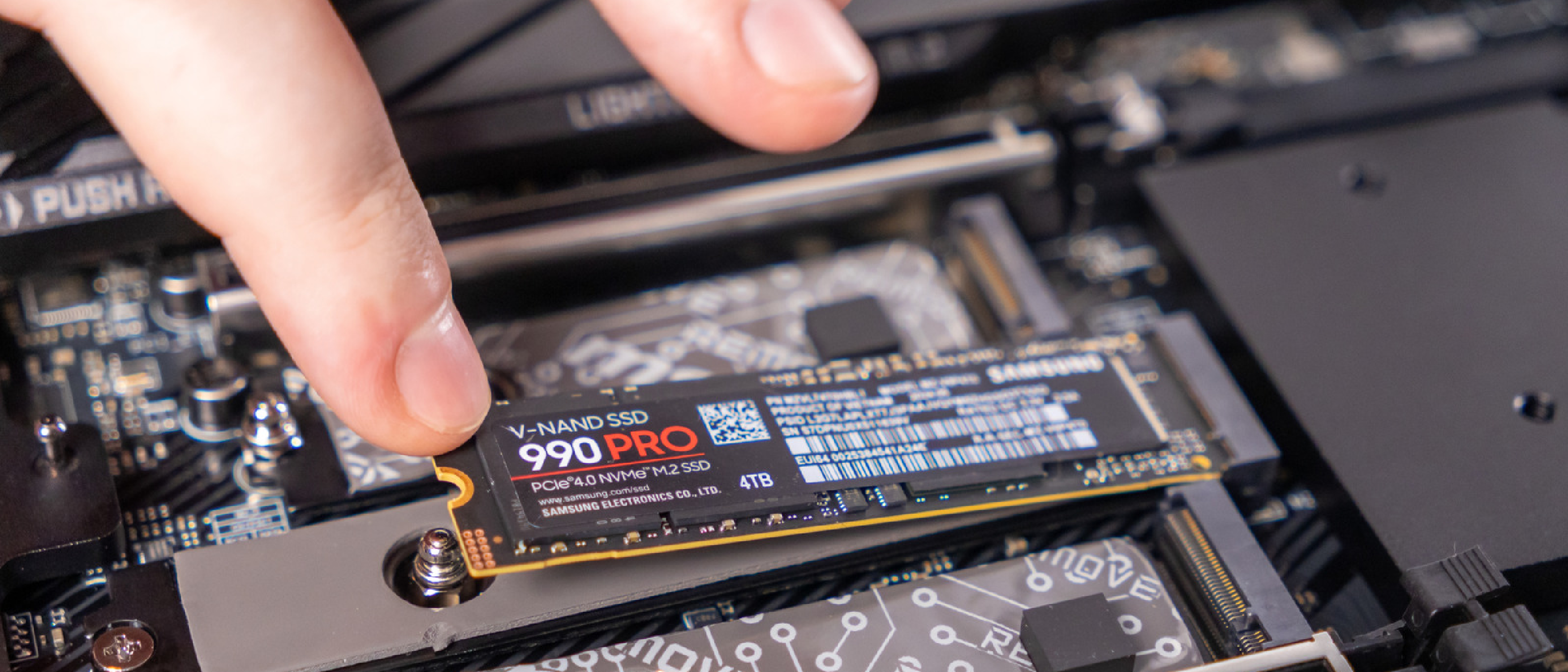
2.5‑inch SATA vs. M.2 NVMe
| Feature | 2.5‑inch SATA | M.2 NVMe |
|---|---|---|
| Physical size | 7 mm or 9.5 mm thick, 2.5 inches wide | 22 mm wide, lengths of 30, 42, 60, 80 mm |
| Interface | SATA III (6 Gb/s) | PCIe 3.0/4.0 (up to 32 Gb/s) |
| Typical speed | 500‑550 MB/s read/write | 1‑7 GB/s read, 1‑5 GB/s write |
| Compatibility | Works in most older laptops and desktops | Requires M.2 slot that supports NVMe (most modern laptops) |
Both form factors can be housed in the same Sabrent enclosure model, which automatically detects the drive type and routes the appropriate protocol over USB‑C.
USB‑C as the Universal Bridge
USB‑C is now the de‑facto connector for high‑speed external storage. The Sabrent enclosure leverages USB 3.2 Gen 2x2, delivering up to 20 Gb/s (≈2.5 GB/s) when paired with a compatible host. This bandwidth is sufficient to saturate even a SATA‑based SSD and provides a noticeable performance boost over traditional USB‑A external HDDs.
For deeper insight into the versatility of USB‑C, see our earlier piece on the topic: USB‑C on Your Phone: More Than Just Charging and Data .
Choosing the Right Enclosure
When shopping on Amazon, look for these key specifications:
- Form‑factor support: Must list both 2.5‑inch SATA and M.2 NVMe.
- USB‑C Gen 2x2: Guarantees the highest possible throughput.
- Tool‑free installation: Some models include a screwdriver‑free tray, speeding up the build.
- Thermal design: Aluminum bodies dissipate heat better than plastic, preserving SSD longevity.
The Sabrent enclosure meets all these criteria while remaining “fairly affordable,” making it a solid choice for DIY repurposing projects.
Step‑by‑Step Guide to Turning an SSD into an External Drive
Below is a chronological workflow that assumes you have a removable SSD and a compatible Sabrent enclosure.
Identify the SSD
- Open the laptop’s service panel (refer to the manufacturer’s manual).
- Verify that the SSD is not soldered; if it is, the repurposing route ends here.
Back Up Important Data
- Connect the laptop to a secondary storage device or cloud service.
- Copy any personal files, licenses, or system images you wish to keep.
Assess SSD Health
- macOS: Open Disk Utility, select the drive, and click “First Aid.”
- Windows: Launch Drive Management, right‑click the SSD, and choose “Properties → Tools → Check.”
- Look for SMART warnings or a high “Total Bytes Written” count.
Decide on Data Retention Strategy
- If the drive shows signs of wear, limit its use to non‑critical, large files (e.g., AAA game installations, media libraries).
Format the SSD
- Use APFS for macOS‑only use, NTFS for Windows, or exFAT for cross‑platform compatibility.
- Perform a full erase rather than a quick format to ensure a clean slate.
Install the SSD into the Enclosure
- Open the Sabrent case, align the connector (SATA or NVMe), and secure the drive.
- Close the enclosure, ensuring the USB‑C port is unobstructed.
Connect via USB‑C
- Plug the enclosure into any computer with a USB‑C port.
- The OS should recognize it as an external drive; assign a drive letter or mount point as needed.
Utilize the External SSD
- Offload bulky game files, store video projects, or keep a portable backup of essential documents.
- Because the drive operates at SSD speeds, loading times for games or large media are dramatically reduced compared with traditional external HDDs.
Quick Reference Checklist
- ☐ Verify SSD is removable
- ☐ Backup existing data
- ☐ Run health diagnostics (Disk Utility / Drive Management)
- ☐ Choose appropriate file system (APFS, NTFS, exFAT)
- ☐ Install SSD in Sabrent enclosure
- ☐ Connect via USB‑C and test read/write speeds
Industry Impact: From E‑Waste to Circular Computing
The practice of re‑housing old SSDs aligns with the circular economy model gaining traction across the tech sector. Companies such as Apple have announced recycling programs, but the on‑user level of refurbishment remains under‑exploited. By extending the lifespan of storage components, we:
- Decrease demand for new NAND production, which is energy‑intensive and relies on rare earth minerals.
- Lower transportation emissions, as a single enclosure replaces the need for a brand‑new external SSD.
- Create a secondary market for refurbished drives, encouraging small businesses to offer “refurb‑and‑sell” services.
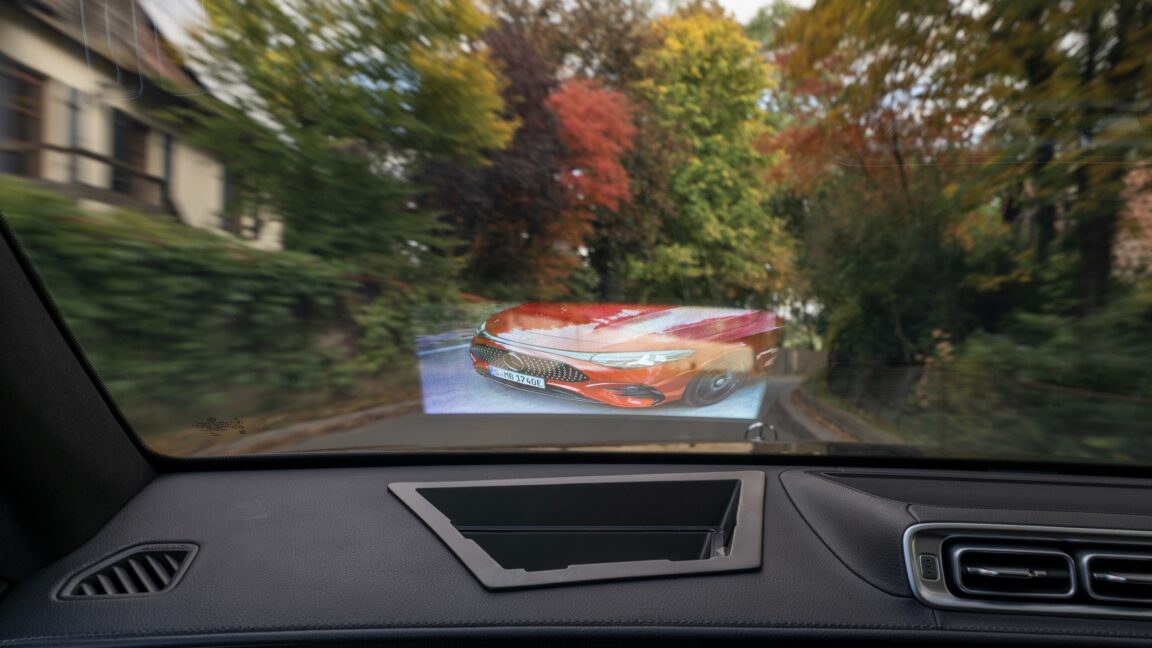
Hardware innovators are also watching this trend. For instance, the Mercedes‑Benz Holographic HUD showcases how manufacturers are rethinking device integration to maximize utility while minimizing waste. Although unrelated to storage, the HUD exemplifies the broader industry shift toward smarter, more sustainable hardware design. (Read more: Mercedes‑Benz Unveils Holographic HUD: Beyond Traditional Car Screens )
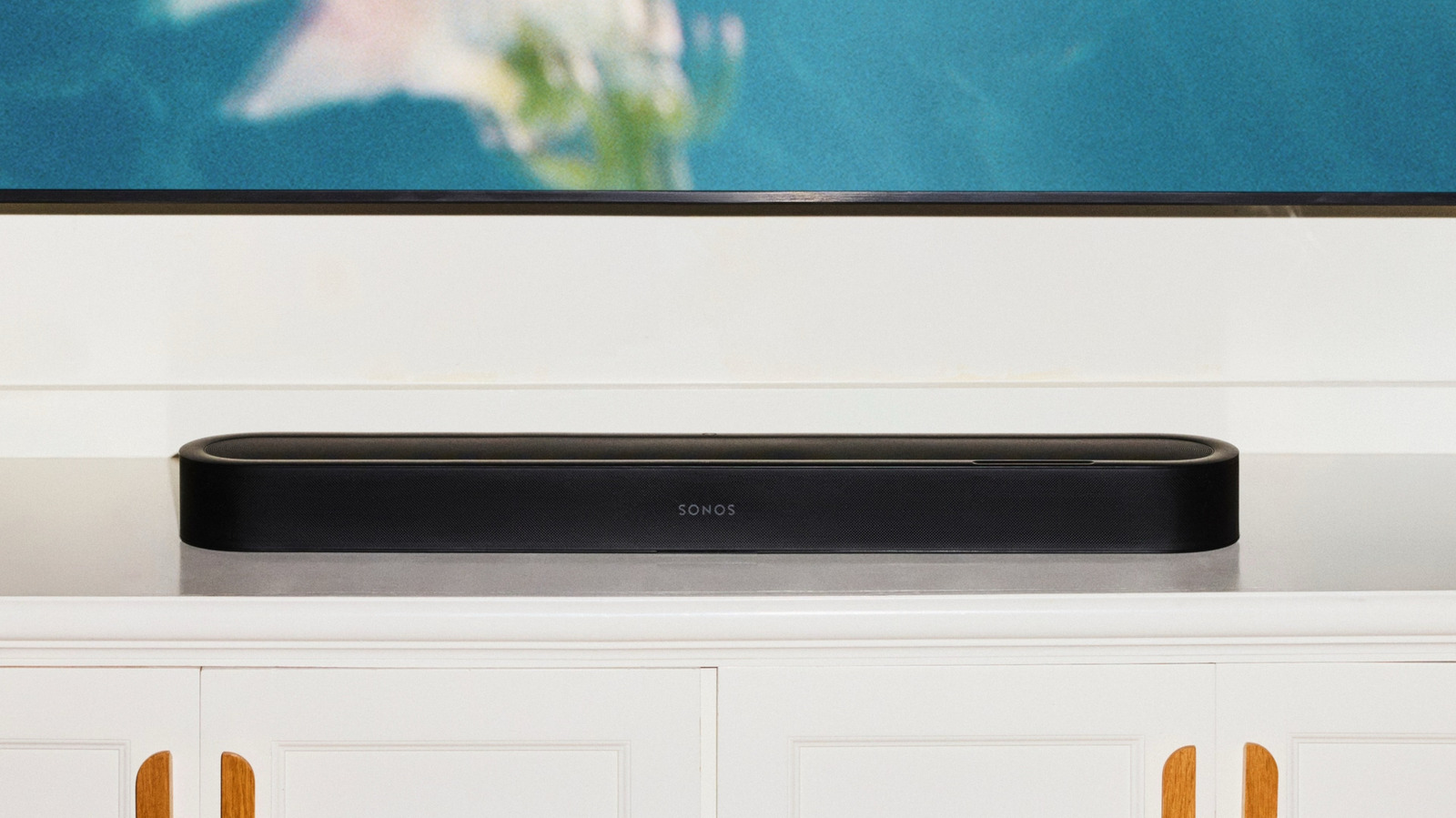
Similarly, the Sonos 27voice Early Access project highlights modular hardware that can be upgraded rather than replaced, echoing the same philosophy we apply to SSD repurposing. (Explore details: Sonos 27voice Early Access: Feature Deep Dive )
Future Outlook: What’s Next for External SSD Solutions?
While today’s USB‑C enclosures already deliver impressive performance, several trends hint at even faster, more integrated solutions:
USB4 and Thunderbolt 4: These standards will push external bandwidth beyond 40 Gb/s, making even the fastest NVMe drives feel like internal storage.
PCIe 5.0 SSDs: As the next generation of SSDs reaches the market, enclosure manufacturers will need to adopt newer controllers to avoid bottlenecks
NVMe‑over‑USB bridges: Chipsets that natively translate PCIe 5.0 lanes to USB‑C will become commonplace, eliminating the current “USB‑C bottleneck” for the newest drives.
Integrated Power Delivery: Future enclosures may draw power directly from the host’s USB‑PD profile, allowing for higher‑performance SSDs without external adapters.
As these standards mature, the line between “internal” and “external” storage will blur even further. For now, a solid‑state drive paired with a capable USB‑C enclosure offers a sweet spot of speed, portability, and cost‑effectiveness.
Tips for Maintaining Your External SSD
Avoid Constant Full‑Disk Writes
- SSDs have a finite write‑cycle budget. Use the external drive primarily for read‑heavy tasks (media playback, game loading) and store write‑intensive workloads on an internal drive or a dedicated high‑end external SSD.
Keep Firmware Updated
- Both the SSD and the enclosure’s controller may receive firmware updates that improve compatibility and performance. Check the manufacturer’s website periodically.
Monitor Temperature
- Enclosures with aluminum bodies dissipate heat better, but prolonged high‑speed transfers can still raise temperatures. If you notice throttling, give the drive a short break or add a small passive heatsink.
Safely Eject Before Disconnecting
- Always use the OS‑level “Eject” or “Safely Remove Hardware” command. Abrupt power loss can corrupt the file system, especially on drives formatted with APFS or NTFS.
Back Up Critical Data
- Even though the SSD is repurposed for non‑critical files, it’s still a valuable storage medium. Keep a secondary backup of irreplaceable data on a cloud service or another external drive.
Common Issues & How to Fix Them
| Symptom | Likely Cause | Fix |
|---|---|---|
| Drive not recognized on Windows | Missing driver for USB‑C controller | Install the latest chipset drivers from the motherboard or enclosure manufacturer. |
| Slow transfer speeds (≈5 MB/s) | Enclosure connected to a USB‑A 2.0 port or using a non‑USB‑3 cable | Use a USB‑C to USB‑C cable rated for USB 3.2 Gen 2x2 and plug into a compatible port. |
| Random disconnects | Overheating or insufficient power | Ensure the enclosure’s ventilation is clear; try a powered USB hub if the host’s port supplies limited power. |
| “Read‑only” error on macOS | Drive formatted with a Windows‑only file system (NTFS) without third‑party driver | Re‑format to exFAT for cross‑platform use, or install an NTFS‑write driver like Paragon NTFS for Mac. |
| SMART data not showing | Enclosure’s bridge chip does not pass through SMART commands | Use a direct SATA‑to‑USB adapter for health checks, or rely on the SSD’s built‑in diagnostics before enclosure installation. |
Conclusion
Repurposing a removable laptop SSD into a USB‑C external drive is a straightforward, low‑cost way to extend the life of a perfectly good piece of hardware. By following the steps outlined—checking compatibility, backing up data, assessing health, formatting, and installing the drive in a quality Sabrent enclosure—you can create a high‑speed, portable storage solution that rivals many commercial external SSDs.
Beyond the personal benefits of extra space and faster file access, this practice contributes to a more sustainable tech ecosystem by reducing e‑waste and lowering demand for new NAND production. As USB4, Thunderbolt 4, and PCIe 5.0 become mainstream, the performance gap will shrink even further, making today’s DIY external SSDs an even smarter investment.
Frequently Asked Questions
Q: Can I use a SATA SSD in an enclosure that also supports M.2 NVMe? A: Yes. Most dual‑compatible enclosures have separate bays or a universal connector that automatically detects the drive type. Just ensure the SSD is securely seated in the correct slot.
Q: Will the enclosure work with a Mac that only has USB‑A ports? A: You can use a USB‑C to USB‑A adapter or cable, but you’ll be limited to the bandwidth of the USB‑A port (typically USB 3.0, ~5 Gb/s). Performance will still be better than a traditional HDD but lower than the enclosure’s maximum capability.
Q: Is it safe to leave the external SSD plugged in 24/7? A: Generally yes, as SSDs have no moving parts and generate little heat. However, if the enclosure runs hot under continuous heavy loads, consider unplugging it periodically to allow cooling.
Q: Do I need to reinstall the SSD’s firmware after moving it to an enclosure? A: No. Firmware is stored on the SSD itself and works regardless of the host interface, provided the enclosure’s bridge chip supports the drive’s protocol (SATA or NVMe).
Q: How can I test the actual read/write speeds of my new external SSD? A: Use tools like CrystalDiskMark (Windows) or Blackmagic Disk Speed Test (macOS) to benchmark the drive after installation. Compare the results to the SSD’s advertised specs to confirm the enclosure isn’t throttling performance.
Q: Will the external SSD be recognized by Linux?
A: Absolutely. Most modern Linux kernels include drivers for USB‑C, USB‑4, and NVMe‑over‑USB bridges. The drive will appear as a standard block device (e.g., /dev/sdb). Use lsblk or fdisk -l to verify.
Happy repurposing, and enjoy the boost in storage flexibility without adding to the landfill!
Source: Original Article