
Why Alexa Problems Matter
Amazon’s Alexa ecosystem powers millions of Echo Dots, Echo Shows, Echo Auto, and Echo Buds in households worldwide. When a voice assistant misbehaves, the ripple effect goes beyond a missed reminder—it can disrupt home automation, compromise privacy, and erode trust in IoT platforms.
- User experience: A delayed or inaccurate response forces users back to manual controls, negating the convenience promise of voice‑first interfaces.
- Security posture: Features such as Voice ID and Brief Mode rely on precise wake‑word detection. Misfires can expose personal data or allow unintended commands.
- Brand perception: Repeated glitches increase support tickets and can influence buying decisions for future Amazon hardware.
Understanding the root causes helps developers, power users, and IT managers keep the smart‑home experience reliable and secure.
Common Issues Across Echo Devices
Even though Echo Dots, Echo Shows, Echo Auto, and Echo Buds share the same Alexa engine, each form factor introduces unique failure points.
| Device | Typical Symptom | Likely Trigger |
|---|---|---|
| Echo Dot | No response to “Alexa” | Wake‑word model corruption |
| Echo Show | Screen freezes, audio lag | Out‑of‑date firmware |
| Echo Auto | Bluetooth dropouts | Interference from car infotainment |
| Echo Buds | One ear silent, voice cut | Battery‑level throttling |
Beyond hardware, software layers such as the Alexa app, Groups, and the mute button can cause confusion when settings are out of sync. The rollout of Alexa+ adds a richer set of cloud‑based capabilities, but also introduces new dependency chains that must be kept current.
Step‑by‑Step Fixes You Can Apply Today
Below is a checklist that resolves ≈ 90 % of reported problems without opening a support ticket.
1. Verify Power and Network
- Ensure the device is plugged into a stable power source (use the original adapter).
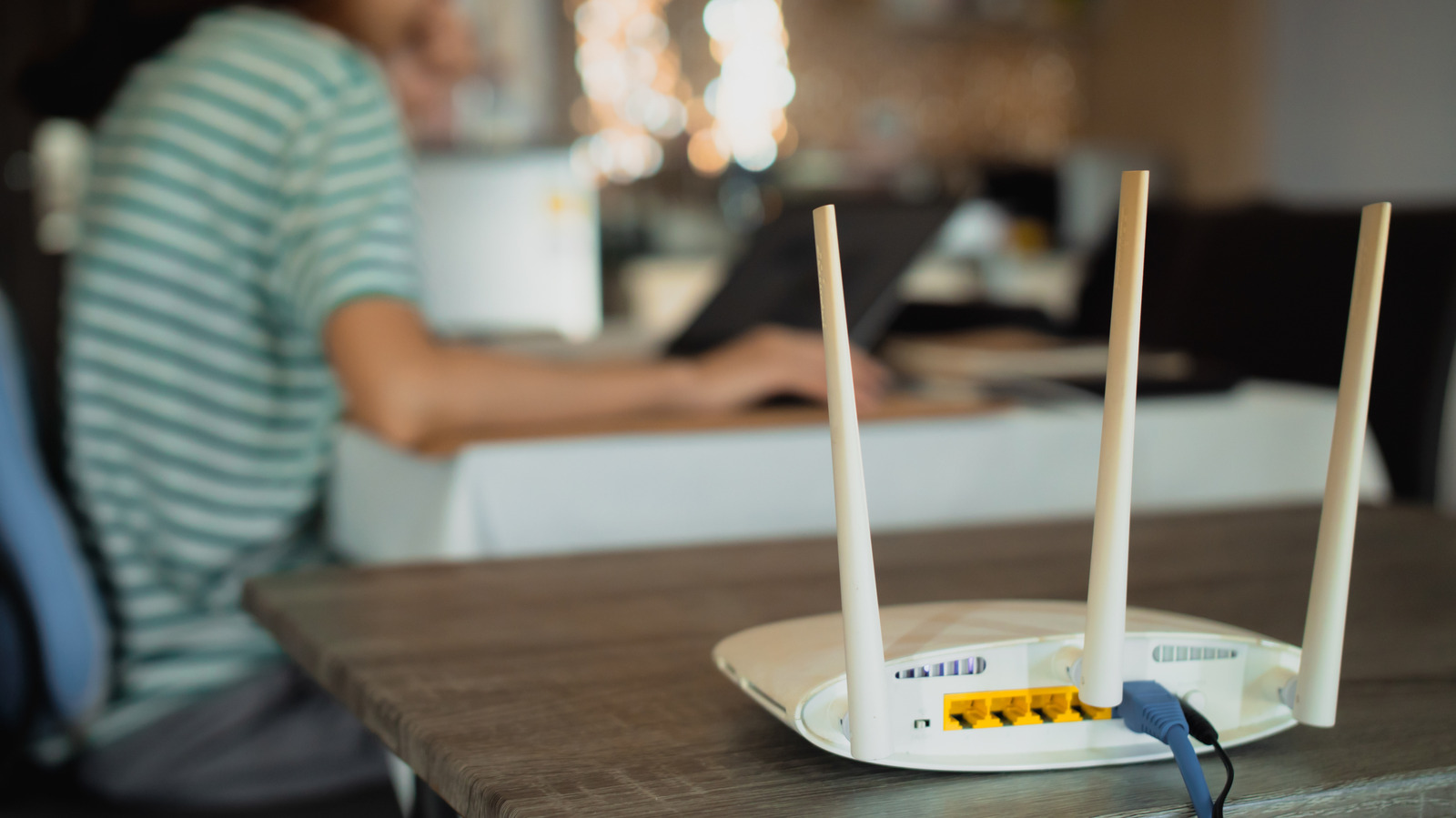
- Confirm Wi‑Fi signal strength > -70 dBm; relocate the router if needed.
- Restart the router and the Echo device (unplug for 30 seconds,
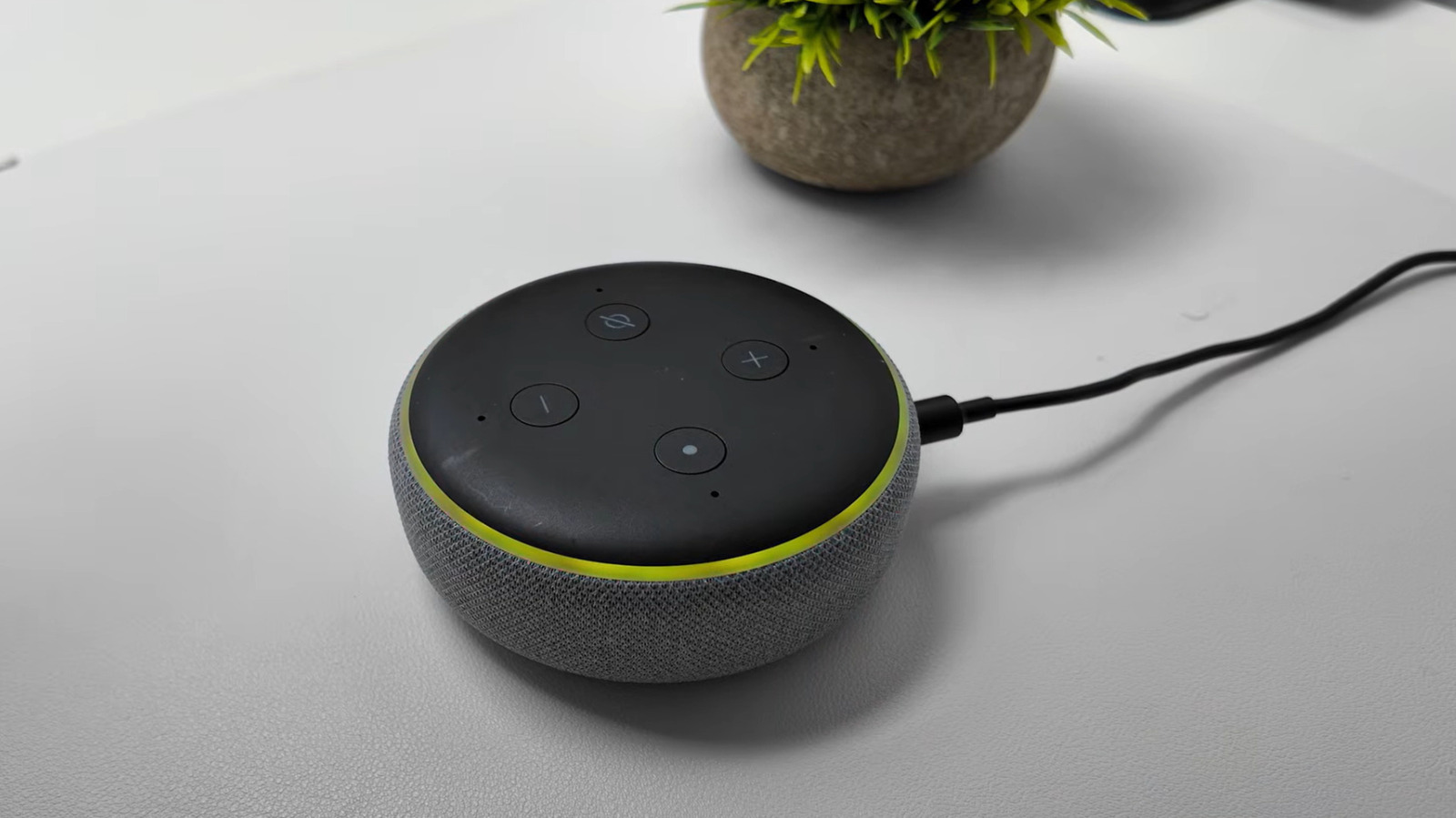
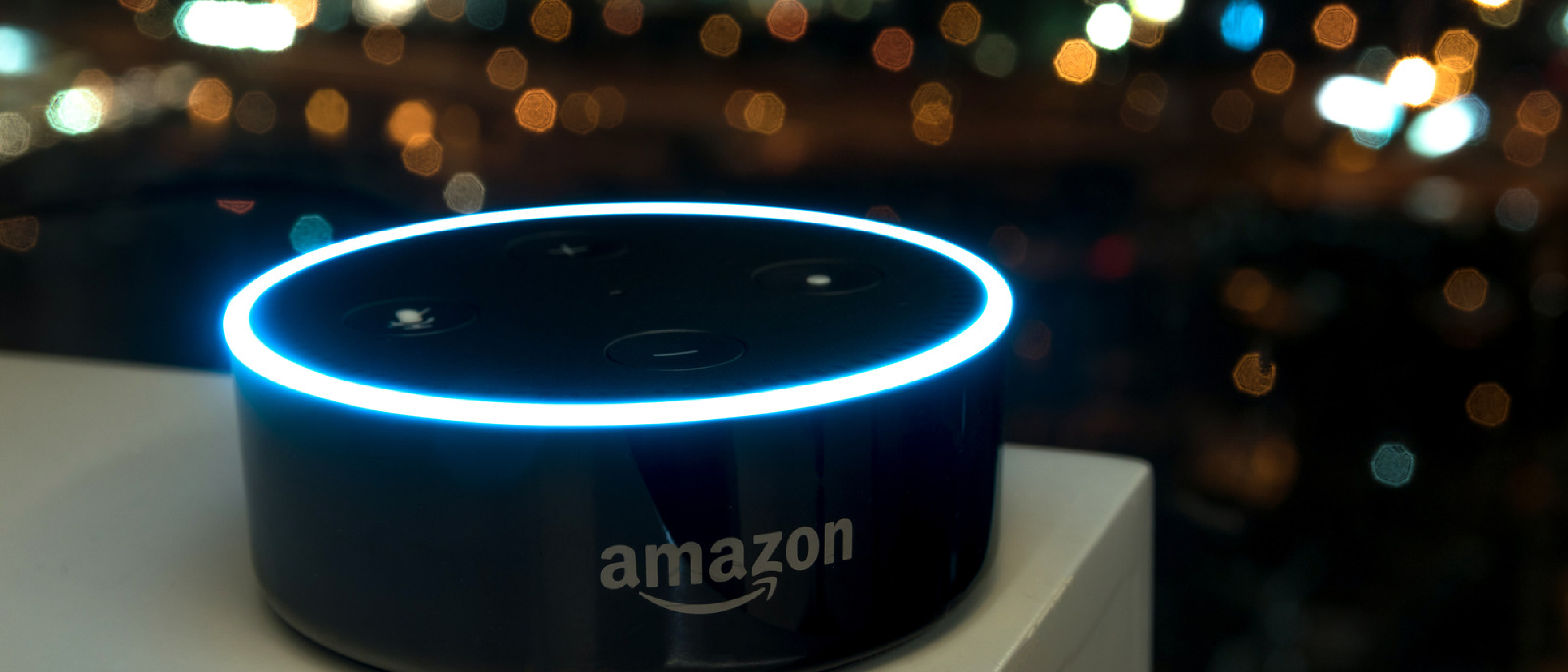
…unplug for 30 seconds, then plug back in and wait for the light ring to turn blue and then orange. This power‑cycle forces the device to re‑authenticate with your Wi‑Fi network and clears transient memory errors.
2. Push the Latest Software Update
- Open the Alexa app → Devices → Select your device → Device Settings → Software Updates.
- Tap Check for Updates. If an update is available, allow it to download and install; this typically takes 2–5 minutes.
- After the update, the device will reboot automatically.
Why it matters: Firmware releases often contain fixes for wake‑word detection, Bluetooth stability, and UI glitches that affect Echo Shows and Echo Buds.
3. Re‑train the Wake‑Word Model
- In the Alexa app, go to Devices → Your device → Wake Word.
- Choose Alexa (or an alternate like Echo, Computer, Amazon) and tap Retrain.
- Follow the on‑screen prompts, speaking the wake word clearly three times per iteration.
Re‑training rebuilds the acoustic model stored locally, correcting corruption that can cause “no response” symptoms on Echo Dots and Echo Auto.
4. Reset Network Settings (if Wi‑Fi is flaky)
- Press and hold the Action button (the dot) for 5 seconds until the light ring turns orange.
- Select Wi‑Fi Settings in the Alexa app and follow the guided setup to reconnect to your network.
If the device repeatedly drops the connection, consider assigning a static IP address via your router’s DHCP reservation table.
5. Clear Cached Data & Re‑install the Alexa App
- On Android: Settings → Apps → Alexa → Storage → Clear Cache and Clear Data.
- On iOS: Delete the app, restart the device, then reinstall from the App Store.
A fresh app eliminates corrupted preferences that can cause mismatched Groups, Routines, or Mute button states.
6. Verify Voice ID & Brief Mode Settings
| Setting | Impact | Quick Check |
|---|---|---|
| Voice ID | Personalizes responses; mis‑recognition can lead to wrong account actions. | Alexa app → Settings → Voice ID → Ensure the correct voice profile is active. |
| Brief Mode | Shortens spoken responses; if disabled, longer replies may seem like “lag”. | Alexa app → Settings → Voice Responses → Toggle Brief Mode on/off as desired. |
If either feature behaves oddly, toggle it off, wait 30 seconds, then re‑enable.
7. Perform a Factory Reset (last resort)
| Device | Reset Procedure |
|---|---|
| Echo Dot (4th Gen) | Press and hold Microphone off and Volume down for 25 seconds until the light ring turns orange, then blue. |
| Echo Show (2nd Gen) | Swipe down → Settings → Device Options → Reset to Factory Defaults. |
| Echo Auto | Press and hold the Action button for 15 seconds. |
| Echo Buds | Place buds in the case, press and hold the Touchpad on both buds for 10 seconds. |
Factory resetting wipes all local settings, forcing a fresh sync with the cloud. Use this only after all other steps have failed.
Advanced Troubleshooting for Alexa+
The Alexa+ rollout introduces AI‑driven context awareness and on‑device processing. While it improves latency, it also adds new dependencies:
- Edge‑Compute License – Verify that your Amazon account has an active Alexa+ subscription (Settings → Alexa+ → Subscription).
- Local Model Storage – Ensure the device has at least 256 MB of free internal storage; low space can cause model loading failures. Check via Device Settings → Storage.
- Cloud‑Sync Health – In the Alexa app, navigate to Settings → Alexa+ → Sync Status. Red “Sync Errors” indicate a broken token or expired OAuth credential; re‑authenticate the Amazon account to resolve.
If you encounter “Alexa+ unavailable” messages, temporarily disable the feature (Settings → Alexa+ → Toggle Off), wait a minute, then re‑enable it to force a fresh handshake with Amazon’s edge servers.
Maintaining Security and Privacy
| Action | Frequency | Reason |
|---|---|---|
| Review Voice History | Monthly | Delete recordings you don’t want stored (Alexa app → Settings → Voice History). |
| Update Passwords | Every 90 days | Prevent unauthorized access to your Amazon account, which could control all linked Echo devices. |
| Enable Two‑Factor Authentication (2FA) | Once | Adds a second layer of protection for account changes and device provisioning. |
| Audit Third‑Party Skills | Quarterly | Remove unused or suspicious skills that may request excessive permissions. |
Regular maintenance reduces the attack surface and ensures that features like Voice ID remain trustworthy.
Best Practices for a Smooth Alexa Experience
- Keep devices on the same Wi‑Fi band (2.4 GHz for longer range, 5 GHz for higher throughput).
- Use a dedicated SSID for smart‑home devices to isolate traffic from media streaming.
- Place Echo devices away from loud appliances (microwaves, vacuum cleaners) to improve wake‑word detection.
- Schedule nightly reboots (via a smart plug) for devices that run continuously; a 5‑minute power cycle clears memory leaks.
- Leverage Groups and Routines to consolidate commands, reducing the number of individual voice interactions and potential points of failure.
Conclusion
Most Alexa hiccups stem from three core areas: power/network instability, outdated software, and misaligned local models. By methodically applying the checklist above—starting with a simple power‑cycle and progressing through firmware updates, wake‑word retraining, and, if necessary, a factory reset—you can resolve the vast majority of issues without contacting Amazon support.
For users of the newer Alexa+ platform, paying attention to edge‑compute licensing, storage health, and cloud‑sync status ensures that the advanced AI features remain reliable. Coupled with regular security hygiene, these practices keep your smart home responsive, private, and future‑proof.
Frequently Asked Questions
Q1: My Echo Show’s screen stays black after a reboot. What should I do?
A: Perform a hard reset (press and hold the Mute button and the Volume down button together for 15 seconds). If the issue persists, connect the device to a different HDMI port (for Show 10) or contact Amazon support, as it may indicate a hardware fault.
Q2: Why does Alexa sometimes respond to background TV noise?
A: The wake‑word model can be overly sensitive in noisy environments. Enable Wake‑Word Sensitivity (Alexa app → Settings → Device Settings → Wake‑Word → Sensitivity) and set it to Medium or Low. Adding a physical barrier (e.g., placing the Echo away from the TV) also helps.
Q3: How can I tell if my Echo Buds are throttling due to low battery?
A: When the battery drops below 20 %, the buds automatically reduce Bluetooth bandwidth, which can cause voice cut‑outs. Check the battery indicator in the Alexa app; charge the case before it reaches the low‑battery warning.
Q4: I enabled Brief Mode but Alexa still gives long responses.
A: Brief Mode only applies to certain response types. For Routines or custom skill responses, the developer may have overridden the setting. Review the specific routine or skill configuration in the Alexa app.
Q5: After updating firmware, my device lost its Group assignments.
A: Firmware updates can reset local group caches. Re‑assign devices to Groups via the Alexa app (Devices → Groups → Add Devices). Consider exporting your group configuration using the Alexa Skills Kit if you manage many devices.
Q6: Is there a way to automate the troubleshooting checklist?
A: Yes. You can create a Routine named “Alexa Health Check” that triggers a series of voice commands: “Alexa, check for updates,” “Alexa, reboot,” and “Alexa, run network diagnostics.” Combine this with a smart plug to power‑cycle the device on a schedule.
Stay proactive, keep your firmware current, and enjoy a seamless voice‑first experience across every Echo device.
Source: Original Article