





Overview of Apple’s 50‑Way Accessibility Initiative
In 2024, coinciding with its 50th anniversary, Apple released a dedicated support page that enumerates 50 built‑in accessibility adjustments designed to make iPhone, iPad, Mac, Apple Watch, and other devices easier for older adults to operate. The list is not a separate app or paid add‑on; each tip leverages existing system settings, HomeKit integration, or native services that are already part of the Apple ecosystem.
The initiative is framed around a simple premise: many of Apple’s customers are now older than the company itself. By surfacing these settings in a single, easy‑to‑navigate guide, Apple hopes to reduce the learning curve for seniors, keep them connected, and reinforce the brand’s long‑standing commitment to universal design.
Why It Matters for an Aging User Base
Demographic Shift
- Aging population: In the United States alone, the proportion of adults over 65 is projected to exceed 20 % by 2030.
- Device penetration: Recent market data shows that more than 60 % of adults 55+ own a smartphone, and a growing share use wearables for health tracking.
When a device’s default UI assumes a younger, tech‑savvy audience, older users can encounter barriers that lead to frustration or abandonment. Apple’s guide directly addresses those barriers.
Health and Independence
- Vision decline: Larger text, higher contrast, and magnification reduce eye strain.
- Dexterity challenges: Voice Control, AssistiveTouch, and simplified gestures help users with reduced fine motor skills.
- Cognitive load: Consolidated notifications (e.g., appliance‑cycle alerts) keep users informed without requiring constant visual monitoring.
By embedding these options, Apple not only improves usability but also supports independent living—a key factor in seniors’ quality of life.
Technical Breakdown of Sample Features
Below are two of the 50 recommendations, examined in depth to illustrate the underlying technology.
1. Adjustable Text Size on Apple Watch
- What it does: Users can increase or decrease the size of all on‑screen text, from watch faces to app notifications.
- How it works: The setting lives under Settings → Display & Brightness → Text Size on the paired iPhone, which syncs via watchOS. The change propagates through the
UIFontMetricsAPI, ensuring that every UI element scales proportionally. - Impact: Larger text improves readability for users with presbyopia or cataract‑related vision loss, while the ability to shrink text preserves screen real estate for those who prefer a compact view.
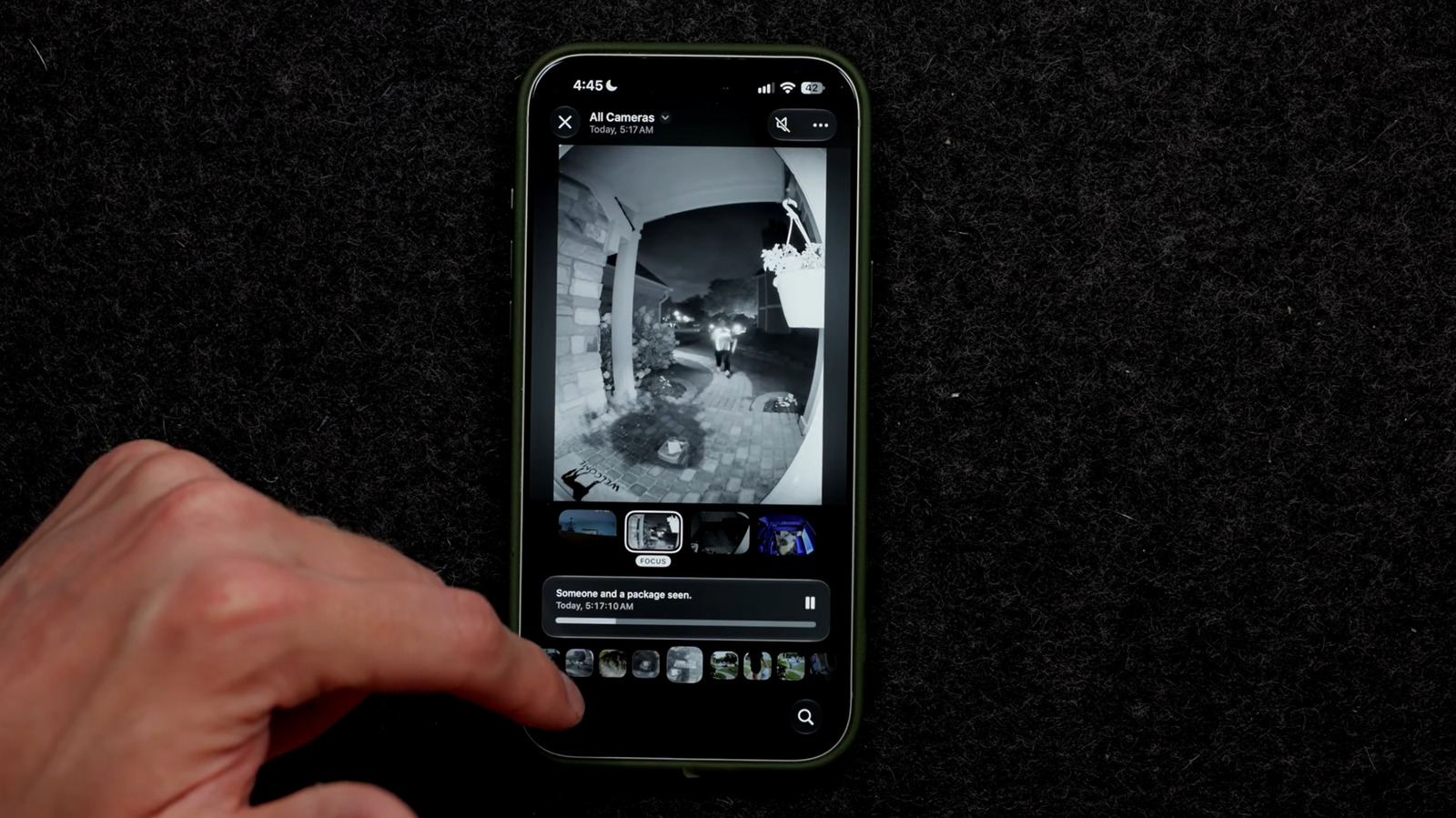
2. iPhone Alerts for Appliance Cycles
- What it does: When a HomeKit‑compatible appliance (e.g., washing machine) finishes a cycle, the iPhone delivers a push notification.
- How it works: The appliance publishes a
characteristicupdate to HomeKit, which triggers aUNNotificationRequestin the iOS Notification Center. Users can customize the alert tone, banner style, or even have the notification read aloud via Siri. - Impact: This feature reduces the need for users to constantly check the appliance, a boon for those with mobility limitations or memory concerns.
Other Notable Settings (Brief Overview)
Magnifier tool: Turns the iPhone camera into a handheld
Magnifier tool: Turns the iPhone camera into a handheld magnifying glass, offering adjustable zoom, brightness, and filters (e.g., grayscale) to help users read small print or examine details up close. The feature can be launched instantly from the Accessibility Shortcut (triple‑press the side button) or the Control Center.
Voice Control: Enables fully hands‑free navigation across iOS, iPadOS, macOS, and watchOS. Users can issue spoken commands such as “Open Messages,” “Scroll down,” or “Turn on Do Not Disturb.” Voice Control leverages on‑device speech‑to‑text models, ensuring responsiveness without an internet connection.
AssistiveTouch for iPhone & iPad: Provides an on‑screen menu that replicates hardware button functions (home, Siri, volume, multitasking gestures). The menu can be customized with the most‑used actions, reducing the need for precise taps or gestures.
Tap to Speak (Speak Selection & Speak Screen): When enabled, a two‑finger double‑tap reads aloud highlighted text or the entire screen. This is especially useful for users with low vision or reading difficulties. The speech engine supports multiple languages and adjustable speaking rates.
Hearing Aid Compatibility (AAC) and Live Listen: iPhone and iPad can act as a microphone for compatible hearing aids, streaming audio directly to the device. Live Listen amplifies ambient sound and sends it to AirPods or compatible hearing devices, helping users follow conversations in noisy environments.
Reduced Motion & Motion Sensitivity Settings: Turning off UI animations, parallax effects, and automatic screen transitions can lessen dizziness or disorientation for users prone to motion sickness.
Bold Text & Increased Contrast: System‑wide options that make text weightier and UI elements stand out against the background, improving legibility for those with contrast‑sensitivity issues.
Siri Shortcuts for Routine Tasks: Users can create single‑tap shortcuts for common actions such as “Call Mom,” “Order medication refill,” or “Start a meditation timer.” These shortcuts appear on the Home screen or can be invoked via Siri.
Health App Medication Reminders: Allows caregivers to schedule alerts for prescription times, dosage amounts, and refill notifications. The reminders can be set to vibrate, sound, or appear as a banner, and can be shared with family members.
Find My Alerts for Personal Items: By attaching AirTag‑enabled accessories (e.g., keys, wallets) to everyday objects, the iPhone can issue a gentle chime when the item is out of range, helping users who may forget where they placed items.
Simplified Keyboard (One‑Hand Mode): Shrinks the on‑screen keyboard to one side of the display, making it easier for users with limited reach to type with a single hand.
Emergency SOS via Wearables: A press‑and‑hold on the Apple Watch’s side button automatically calls emergency services and sends the user’s location to pre‑selected contacts—critical for seniors living alone.
Time‑to‑Leave Alerts: Integrated with the Maps app, this feature notifies users when it’s time to depart for an appointment, factoring in real‑time traffic and walking speed.
Sleep Tracking with Bedtime Reminders: The Health app can gently remind users to start winding down, and the Apple Watch can provide a subtle tap to signal the optimal bedtime, supporting better sleep hygiene.
Family Sharing & Screen‑Time Controls: Allows trusted family members to monitor device usage, set downtime windows, and approve app installations, giving caregivers peace of mind without infringing on privacy.
Automatic Brightness & True Tone: Sensors adjust the display’s luminance and color temperature to the ambient environment, reducing eye strain and making the screen easier to read in low‑light conditions.
Keyboard Clicks & Haptic Feedback Customization: Users can enable audible clicks or subtle vibrations for each keystroke, providing tactile confirmation that a key has been registered.
Multi‑User Support on iPad: Enables separate user accounts for shared family iPads, ensuring that each senior can have personalized accessibility settings without affecting others.
Live Text & Visual Lookup: Allows users to tap on text within a photo (e.g., a medication label) and have it read aloud, copied, or translated—useful for handling printed information without needing to hold the paper.
Apple Vision Pro (Future Outlook): Although not yet released at the time of writing, Apple’s mixed‑reality headset promises spatial audio cues and adjustable lens prescriptions, potentially extending the aging‑friendly ecosystem into immersive experiences.
(The full list of 50 features can be explored on Apple’s official support page, which provides step‑by‑step screenshots for each setting.)
How to Find and Enable These Settings
- Open Settings → scroll to Accessibility.
- Choose the category (Vision, Voice Control, Hearing, etc.).
- Toggle the desired feature on, then use the Accessibility Shortcut (triple‑press the side or home button) to make the most‑used options instantly reachable.
- For HomeKit‑related alerts, open the Home app, select the accessory, and enable “Notify When Finished” under the appliance’s settings.
Apple also offers a searchable guide within the Tips app, where users can type keywords like “larger text” or “magnifier” to jump directly to the relevant toggle.
Tips for Caregivers and Family Members
- Walk through the settings together the first time; a brief demonstration reduces anxiety and builds confidence.
- Create a cheat‑sheet (paper or digital) that lists the most‑used shortcuts and the corresponding gestures.
- Set up Family Sharing so you can remotely adjust certain accessibility options if the senior prefers not to navigate menus themselves.
- Test notifications at a comfortable volume and with distinct tones to avoid missed alerts.
- Schedule a quarterly check‑in to review whether any new features have been added in iOS or watchOS updates that could further enhance usability.
Looking Ahead: Apple’s Commitment to Aging Users
Apple’s “50 Ways” guide is more than a marketing checklist—it signals a broader strategic focus on universal design. By embedding accessibility deep within the OS, Apple ensures that features are available to all users, not just those who enable a separate “Accessibility” mode.
Future OS releases are expected to expand on these foundations with AI‑driven assistance, such as predictive text that adapts to a user’s speech patterns, and health‑focused alerts that anticipate potential falls based on wearable sensor data. As the global senior population grows, we can anticipate that Apple will continue to iterate on these tools, possibly integrating them with third‑party services (e.g., tele‑health platforms) to create a more cohesive aging‑friendly ecosystem.
Conclusion
Apple’s curated list of 50 built‑in accessibility tweaks demonstrates a thoughtful response to a shifting demographic landscape. By making features like larger Watch text, appliance‑cycle alerts, magnifier, Voice Control, and health reminders easy to discover and enable, the company helps seniors stay connected, independent, and safe.
For older users and their support networks, the key takeaway is simple: most of these tools are already on your device—you just need to know where to look. A few minutes spent exploring the Accessibility section can translate into years of smoother interaction with technology.
Frequently Asked Questions
Q: Do any of these features require a paid subscription or additional hardware?
A: All the listed settings are built into iOS, iPadOS, macOS, and watchOS at no extra cost. Some features (e.g., hearing‑aid compatibility) may require compatible accessories, but the software itself is free.
Q: Will older iPhone models support the full set of 50 features?
A: The majority of features are available on devices running iOS 17 or later. Very old hardware may lack certain sensors (e.g., TrueDepth camera) needed for specific functions like Live Text or advanced Face ID gestures.
Q: Can I enable multiple accessibility features simultaneously without performance issues?
A: Yes. Apple designs its accessibility stack to run concurrently. However, enabling many high‑intensity features (e.g., continuous magnification with high‑resolution video) may modestly impact battery life.
Q: How do I reset a feature if I change my mind?
A: Return to Settings → Accessibility, locate the feature, and toggle it off. For shortcuts, you can also adjust the Accessibility Shortcut menu to remove unwanted items.
Q: Where can I find the official “50 Ways” guide?
A: Visit Apple’s support website and search for “50 ways to make devices easier to use as we age.” The page includes a searchable index, screenshots, and short videos for each recommendation.
Source: Original Article